What to Do If You Clicked a Phishing Link
What to Do If You Clicked a Phishing Link
If you clicked a suspicious link, do not panic. What you should do next depends on whether you only opened the link, entered information, downloaded a file, or noticed unusual account activity.
This guide explains what to do if you clicked a phishing link, whether you only opened the page, entered your password, downloaded a file, or clicked from your phone.
Quick Answer
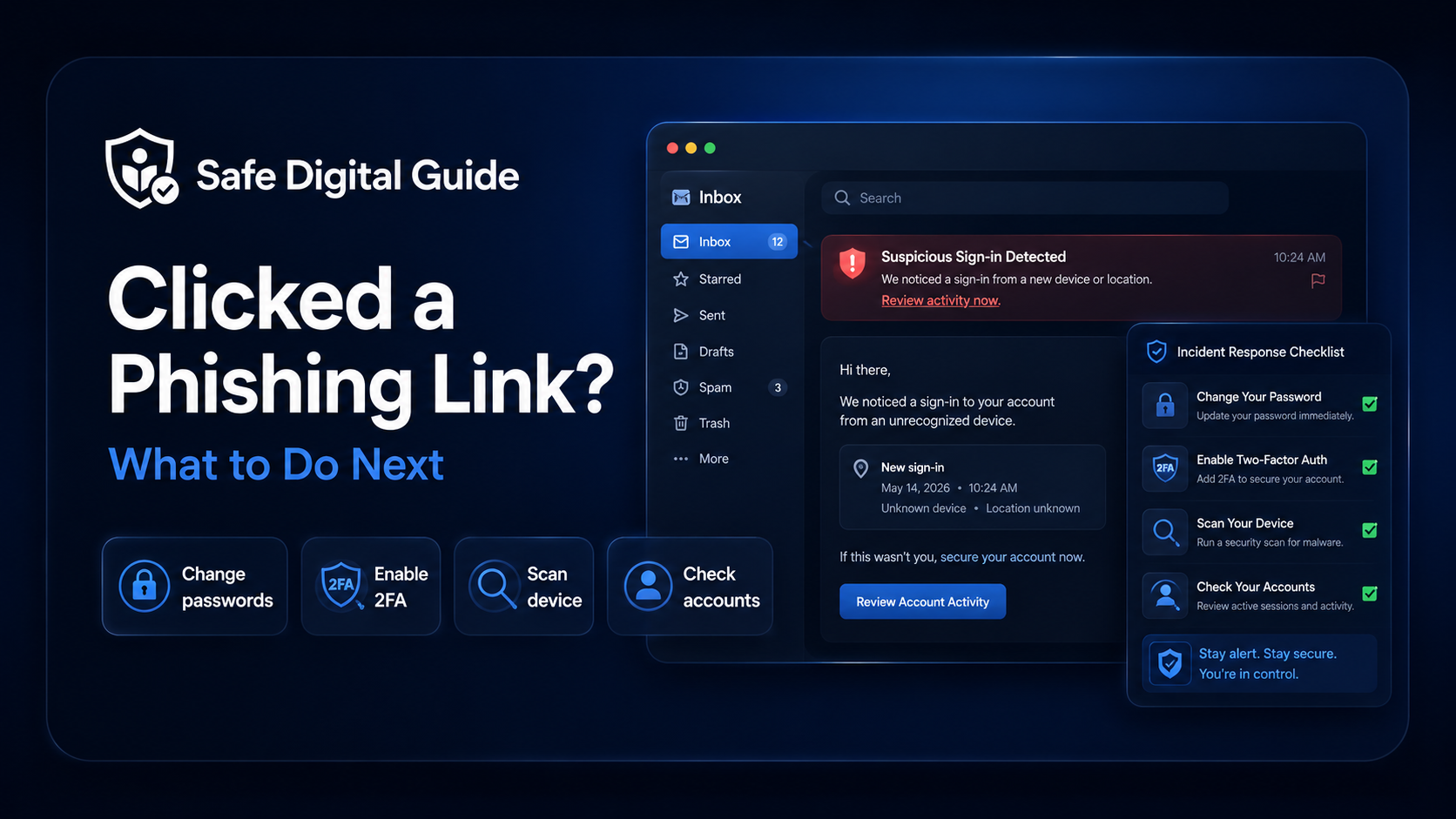
If you clicked a phishing link, close the page immediately, do not enter any information, and avoid downloading anything. If you entered your password, change it from the official website or app, enable two-factor authentication, and check your account activity.
The safest answer to what to do if you clicked a phishing link is to stop interacting with the page, secure any exposed account, and check for suspicious activity.
First rule
Do not use the link again. Open the real website manually by typing the address into your browser or using the official app.
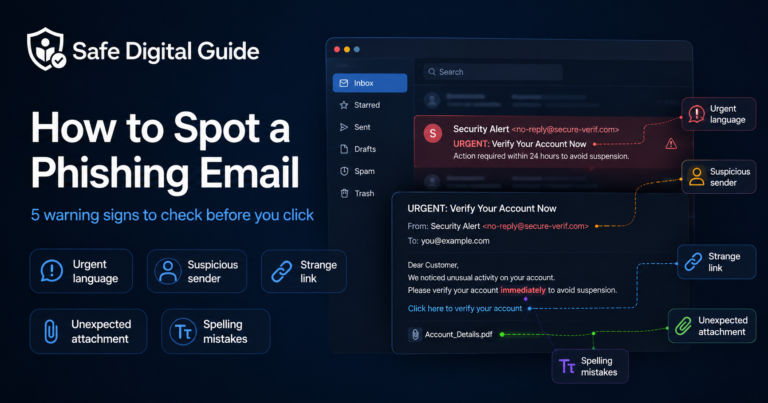
If you are not sure whether the original message was fake, read our guide on how to spot a phishing email before interacting with similar messages again.
What to Do If You Clicked a Phishing Link: Emergency Checklist
Use this quick checklist if you are worried after clicking a suspicious link.
You can also visit our online safety tools page for simple checklists and safety resources.
If You Clicked the Link but Entered Nothing
If you only opened the link and did not type anything, download anything, or give permission to anything, the risk is usually lower. Still, you should stay careful.
What to do
Close the tab, clear the suspicious page from your browser history if needed, and check the official account separately. Do not return to the link to “test” it again.
Some phishing pages are designed mainly to collect information. Others may try to scare you into acting fast. If the page asked you to log in, update payment details, verify your account, or install something, treat it as suspicious.
If You Entered Your Password
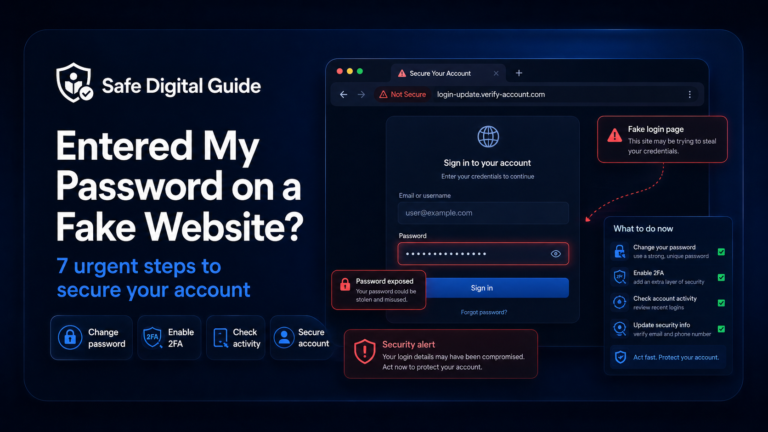
If you typed your password into a suspicious website, act quickly. The attacker may try to use that password immediately.
Do this
- Open the real website or official app.
- Change your password immediately.
- Use a strong, unique password.
- Enable two-factor authentication.
- Check active sessions and recent logins.
Do not do this
- Do not change your password from the suspicious link.
- Do not reuse the same password again.
- Do not ignore login alerts.
- Do not share verification codes with anyone.
- Do not assume the account is safe without checking activity.
Important
If you used the same password on other accounts, change it there too. Start with your email, banking, shopping, social media, and cloud storage accounts.
If You Entered a Verification Code
Verification codes are extremely sensitive. If a fake website asked for a code sent by SMS, email, or an authenticator app, the scammer may have been trying to bypass your account protection.
Act fast
Go directly to the real account, change your password, review logged-in devices, remove unknown sessions, and check whether recovery email or phone details were changed.
A real company will not normally ask you to send a security code through a random link, chat, or email reply. Treat any request for codes as a serious warning sign.
If You Downloaded a File
If the link downloaded a file, attachment, app, browser extension, or document, do not open it again. A file may be used to steal information, install unwanted software, or trick you into giving permissions.
Extra safety step
If your device starts acting strangely, disconnect from the internet and get help from someone trusted before entering more passwords on that device.
What to Do If You Clicked a Phishing Link on Your Phone
Clicking a phishing link on a phone is common. The small screen can make fake links harder to inspect, especially in SMS, WhatsApp, email, or social media messages.
If you installed an app from outside the official app store, remove it. If you gave notification, accessibility, VPN, or device management permissions to something suspicious, review and remove those permissions.
If It Was a Work or School Device
If you clicked the link on a work, school, or shared device, report it quickly. Even if nothing obvious happened, the security team may need to check the device or block the link for other people.
Do not hide it
Reporting quickly is better than waiting. Security teams are usually more concerned about stopping the attack than blaming the person who clicked.
Send a short message explaining what happened, when you clicked, what device you used, and whether you entered any information or downloaded anything.
Accounts You Should Check First
If you are unsure what the phishing link targeted, check your most important accounts first.
- Email account: check forwarding rules, recovery email, recovery phone, and active sessions.
- Bank or payment apps: check transactions, cards, and payment methods.
- Shopping accounts: check orders, addresses, saved cards, and login activity.
- Social media accounts: check messages, posts, linked apps, and login sessions.
- Cloud storage: check shared files, connected devices, and recent activity.
Common Mistakes After Clicking a Phishing Link
The biggest mistakes usually happen after the first click. Try to avoid these actions.
Risky reaction
- Clicking the link again to check it.
- Typing your password “just to see.”
- Replying to the suspicious message.
- Calling phone numbers shown on the fake page.
- Ignoring account alerts after the click.
Better reaction
- Close the page immediately.
- Open the real website manually.
- Change passwords if you entered them.
- Enable two-factor authentication.
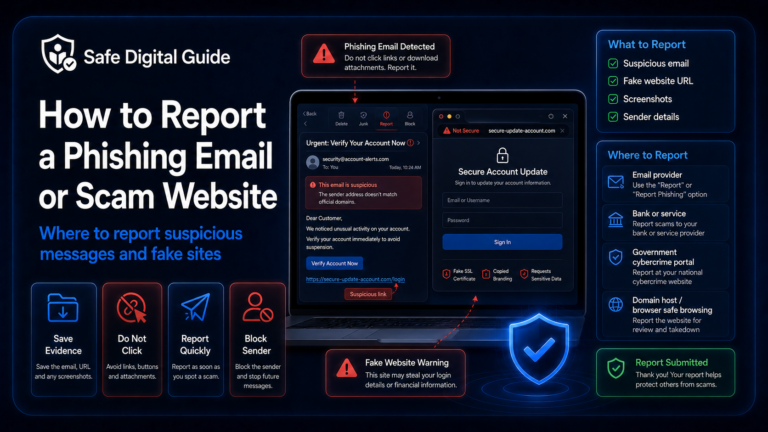
- Report the message if possible.
Simple Recovery Plan
If you want the safest basic approach, follow this order.
Stop interacting with the link
Close the page and do not open the same link again.
Secure the affected account
Change the password from the official app or website and enable two-factor authentication.
Check account activity
Look for unknown logins, changed recovery details, sent messages, purchases, or saved payment changes.
Protect related accounts
If the same password was reused anywhere else, change it there too.
Watch for more scams
Be extra careful with follow-up messages, fake support calls, or urgent recovery emails.
Helpful Official Resources
For more guidance, you can review official phishing advice from CISA and consumer protection guidance from the FTC.
Frequently Asked Questions
Can I get hacked just by clicking a phishing link?
In many cases, the biggest risk comes from entering information, downloading files, or giving permissions. But you should still close the page and check your accounts, especially if the page looked suspicious.
What if I clicked but did not enter my password?
Close the page and avoid interacting with it again. If you did not enter information, download anything, or grant permissions, the risk is usually lower, but it is still smart to monitor your accounts.
What if I entered my password?
Change the password immediately from the official website or app. Then enable two-factor authentication and check recent account activity.
Should I reset my phone or computer?
Not always. If you only opened a page and did not download anything, a full reset is usually not the first step. If you downloaded or installed something suspicious, scan the device and remove anything unknown.
Should I contact my bank?
Contact your bank if you entered card details, banking login details, security codes, or if you notice suspicious transactions.
If you are still unsure what to do if you clicked a phishing link, use the checklist above and focus first on passwords, verification codes, downloads, and account activity.
Final Safety Note
Clicking a phishing link does not always mean your account is hacked. The important thing is to stop, avoid entering more information, and secure any account that may have been exposed.
A good rule is simple: never trust the link after a scare message. Go directly to the official website or app instead.