How to Spot a Phising Email
How to Spot a Phishing Email: Beginner Checklist
Learn how to spot a phishing email with a simple beginner checklist. Use these red flags before clicking links, opening attachments, replying, or entering personal information.
Phishing emails are fake messages designed to trick you into doing something risky. They may ask you to click a link, open an attachment, enter your password, confirm a payment, or share private information.
The safest habit is simple: pause before you click. A phishing email often looks urgent, official, or familiar, but small details can reveal that something is wrong.
Important warning
A professional-looking email is not automatically safe. Scammers can copy logos, colors, layouts, and even fake security alerts. Always check the sender, the link, and the request before taking action.
Quick Answer
You can spot a phishing email by checking the sender address, link destination, urgent language, unexpected attachments, spelling or formatting issues, and requests for passwords, payment details, or verification codes.
If an email feels suspicious, do not click the link. Go directly to the official website or app instead.
Before You Click: 3 Quick Checks
Before clicking a link in any unexpected email, use this quick three-step check.
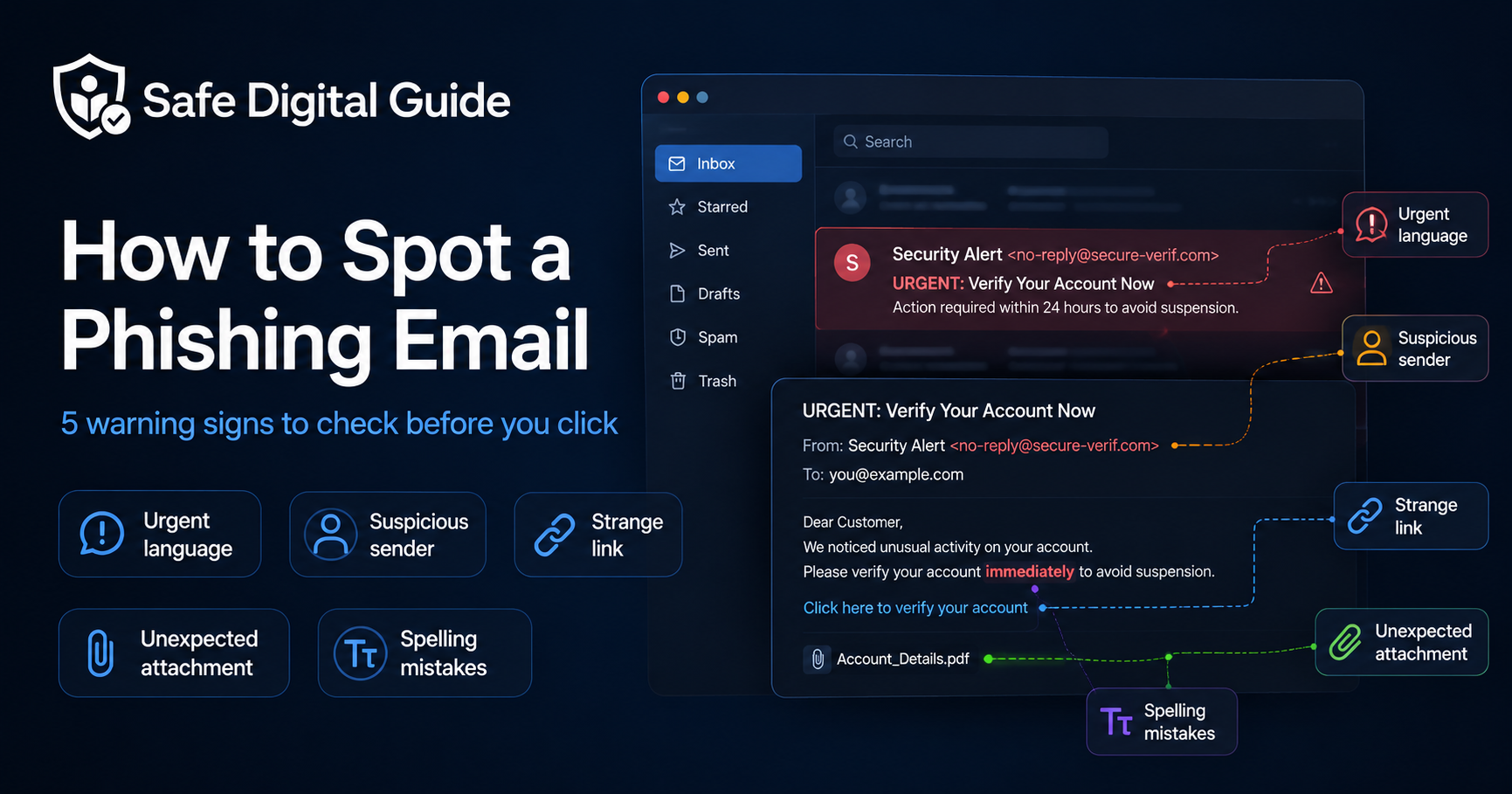
5 Phishing Red Flags at a Glance
If you only remember one thing from this guide, remember these five warning signs.
Example of a Suspicious Phishing Email
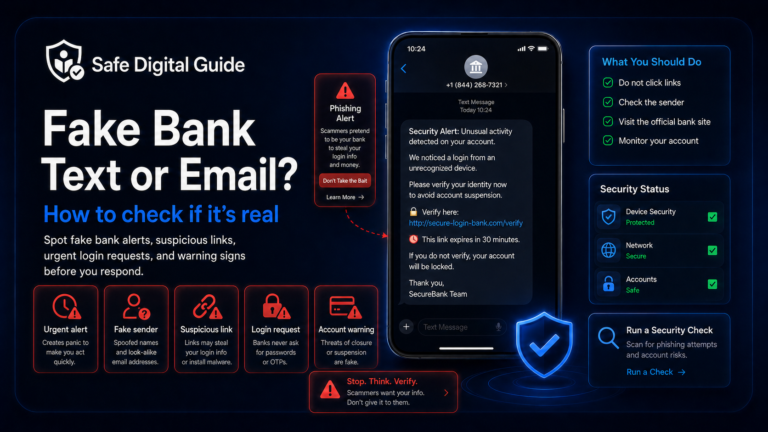
Here is a simple simulated example. This is not a real email, but it shows the kind of details you should check.
Dear Customer,
We noticed unusual activity on your account. You must verify your account within 24 hours to avoid suspension.
Click here to verify your account: http://secure-verify-login.com/update
Attachment: Account_Details.pdf
Safer action
Do not use the email link. Open the official website or app yourself, sign in from there, and check whether there is a real account alert.
Phishing Email Checklist
Use this phishing email checklist before you interact with a suspicious message.
- Check the full sender email address, not just the display name.
- Look for urgent threats, pressure, or unusual deadlines.
- Preview links before clicking whenever possible.
- Do not open unexpected attachments.
- Be careful with requests for passwords, verification codes, card details, or banking information.
- Watch for strange grammar, formatting, logos, or email layout issues.
- Ask yourself whether you expected this message.
- Open the official website or app directly instead of using the email link.
1. Check the Sender Address
A phishing email may use a trusted display name, but the real email address can reveal the scam.
For example, a message may appear to come from “PayPal Support” or “Your Bank”, but the sender address may use a random Gmail account, a misspelled domain, or a strange business name.
Suspicious examples
- support@paypa1-help.com
- security-alert@banking-check.net
- paypal-support@gmail.com
- account-update@secure-verif.com
Safer-looking examples
- no-reply@paypal.com
- alerts@yourbank.com
- support@officialdomain.com
- security@companyname.com
Always expand the sender details and check the full address. A real company usually does not send account security alerts from a random personal email address.
2. Watch for Urgent or Threatening Language
Many phishing emails try to make you panic. They want you to click before you think.
Common phrases include:
- Your account will be closed today.
- Suspicious login detected.
- Payment failed. Act now.
- You have 24 hours to verify your account.
- Final warning.
Simple rule
Urgency does not always mean a message is fake, but urgency plus a suspicious link, strange sender, or request for private information is a major warning sign.
3. Preview Links Before Clicking
A phishing email may show a button that says “Sign in”, “Verify account”, “Track package”, or “Update payment”. The visible text may look normal, but the actual link may lead somewhere else.
On desktop, hover over the link without clicking. On mobile, long-press the link carefully to preview it. If the destination does not match the official website, do not open it.
When in doubt, type the official website address into your browser yourself or open the official app directly.
Safer Verification Flow
If an email claims there is a problem with your account, do not verify it through the email link. Use this safer flow instead.
- Close the email.
- Open your browser or the official app.
- Type the official website address yourself.
- Sign in from the official page.
- Check notifications, messages, billing, or security alerts inside your account.
Why this works
If the alert is real, it will usually appear inside the official account area. If it only appears inside the email, that is a warning sign.
4. Be Careful With Attachments
Unexpected attachments can be risky, especially if the email pressures you to open them quickly.
Be extra careful with files such as:
- .zip files
- .exe files
- .html files
- macro-enabled Word or Excel files
- unexpected PDFs or invoices
Attachment warning
If you were not expecting the file, verify the message through another trusted channel before opening it. Do not rely only on the email itself.
5. Never Share Passwords or Verification Codes
A legitimate company should not ask you to send your password, two-factor authentication code, recovery code, PIN, or private account information by email.
Be especially careful if an email asks for:
- Your password
- A two-factor authentication code
- A recovery code
- Bank card details
- Crypto wallet keys
- Government ID information
Safer habit
Never send passwords, recovery codes, or verification codes through email. If you need to check your account, go directly to the official website or app.
6. Look for Generic Greetings
Some phishing emails use generic greetings because they are sent to many people at once.
Examples include:
- Dear customer
- Hello user
- Dear account holder
- Dear valued client
A generic greeting alone does not prove an email is fake, but it can be a warning sign when the message also contains urgent pressure, suspicious links, or unusual requests.
7. Check Spelling, Formatting, and Design
Some phishing emails contain spelling mistakes, strange spacing, blurry logos, broken layouts, or awkward language.
However, do not rely only on grammar. Many modern phishing emails look professional and can copy real company branding. Treat spelling and formatting as one signal, not the only signal.
Modern phishing can look polished
A clean design does not prove an email is safe. Always combine design checks with sender checks, link checks, and context checks.
8. Ask Whether You Expected the Email
A message is more suspicious if it arrives unexpectedly and asks you to take action.
Be careful with emails about:
- A delivery you were not expecting
- A refund you did not request
- A login alert from a service you do not use
- A payment problem you do not recognize
- A prize, job offer, or investment opportunity you did not apply for
If the email does not match your recent activity, verify it directly through the official source.
Suspicious vs Safer: Quick Comparison
Suspicious email
- Creates panic or pressure
- Uses a strange sender address
- Links to an unfamiliar domain
- Asks for passwords or codes
- Includes unexpected attachments
Safer behavior
- Pause before clicking
- Check the full sender address
- Open the official website manually
- Never share passwords or codes
- Report suspicious messages
What to Do If You Receive a Suspicious Email
If an email looks suspicious, follow these steps:
- Do not click links.
- Do not open attachments.
- Do not reply with personal information.
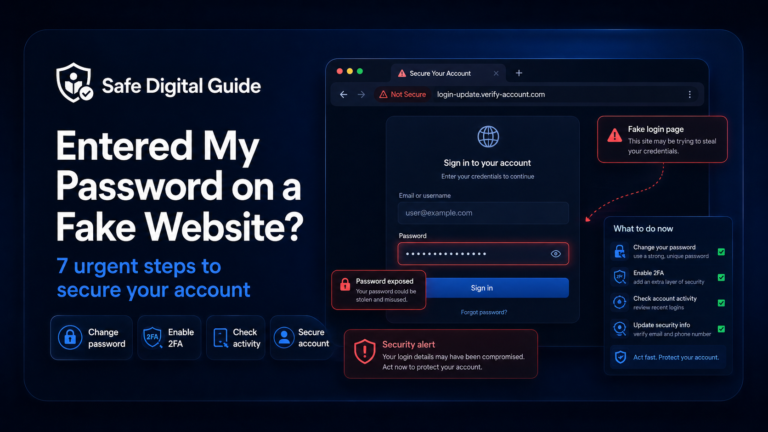
- Do not enter your password after clicking an email link.
- Open the official website or app directly.
- Check your account from there.
- Report the email as phishing or spam if possible.
- Delete the message after reporting it.
CISA recommends recognizing and reporting phishing attempts, and the FTC also provides public guidance on how to recognize and avoid phishing scams. CISA phishing guidance and FTC phishing guidance are useful public resources.
What If You Already Clicked?
If you clicked a suspicious link but did not enter information, close the page and avoid downloading anything.
If you entered your password, change it immediately from the official website or app. Then enable two-factor authentication if it is available.
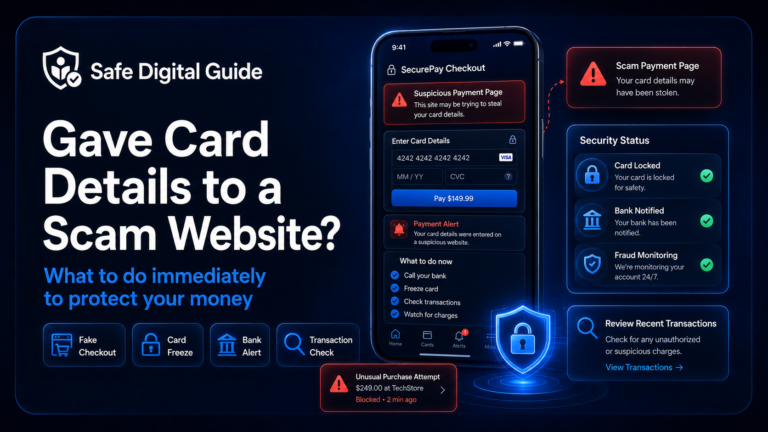
If you entered banking details, contact your bank or payment provider as soon as possible.
If you downloaded a file, do not open it. Run a security scan and, if the device belongs to your workplace, report it to your IT or security team.
Quick Copy-Paste Phishing Checklist
Use this short checklist whenever an email feels suspicious.
- Was I expecting this email?
- Does the sender address match the real company?
- Does the link go to the official website?
- Is the message pressuring me to act quickly?
- Is it asking for passwords, codes, money, or private information?
- Is there an unexpected attachment?
- Can I verify this through the official app or website instead?
Common Mistakes to Avoid
- Trusting an email only because it has a familiar logo.
- Clicking a link because the message sounds urgent.
- Replying to confirm whether the message is real.
- Entering passwords after opening a link from an email.
- Opening unexpected invoices, receipts, or shared files.
- Ignoring small domain changes or misspellings.
FAQ
Can a phishing email look professional?
Yes. Some phishing emails are badly written, but others look polished and realistic. A clean design does not prove the email is safe.
Is it safe to click a link if the email has a company logo?
No. Logos can be copied. Always check the sender address, link destination, and whether you expected the message.
Should I reply to a suspicious email?
Usually, no. Replying can confirm that your email address is active. It is safer to report and delete suspicious messages.
What is the safest way to check an account alert?
Open the official website or app directly. Do not use the link inside a suspicious email.
Are phishing emails only sent by email?
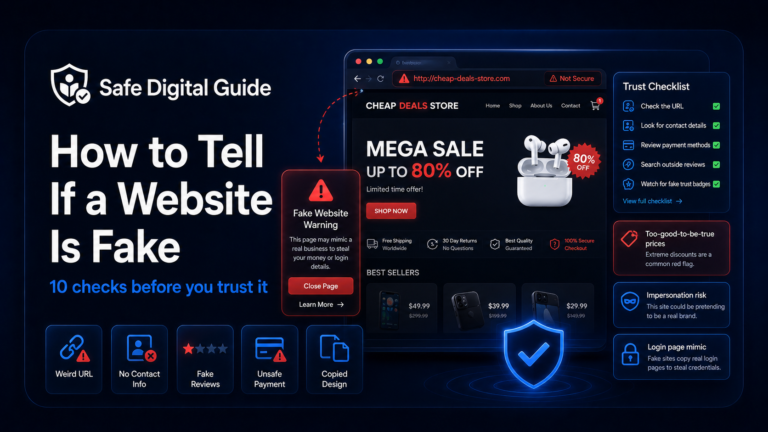
No. Similar scams can happen through text messages, social media messages, phone calls, fake websites, and messaging apps.
Final Safety Note
A phishing email works by making you react too quickly. The best defense is to slow down, check the sender, inspect the link, avoid suspicious attachments, and never share passwords or verification codes through email.
Safe Digital Guide provides educational information only. If you are dealing with financial loss, identity theft, legal issues, or an urgent account compromise, contact the relevant platform, your bank, local authorities, or a qualified professional.