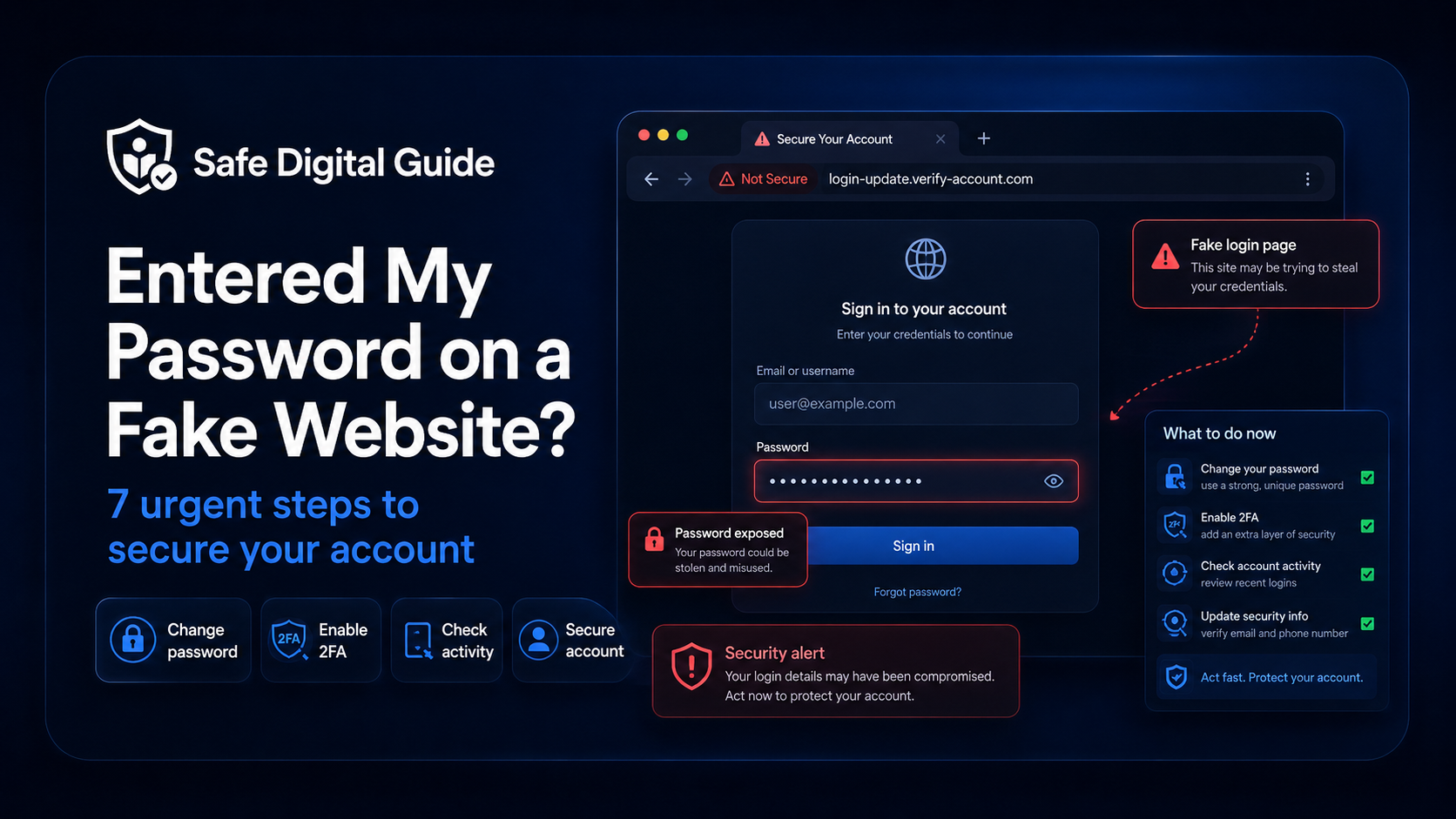
Entered My Password on a Fake Website? 7 Urgent Steps
Entered My Password on a Fake Website? 7 Urgent Steps
If you entered your password on a fake website, act quickly but stay calm. The most important steps are to change your password from the official website, enable two-factor authentication, check recent account activity, and secure any other account where you reused the same password.
This guide explains what to do after entering your password on a fake website, what to check first, and how to reduce the chance of losing access to your accounts.
Quick Answer
If you entered your password on a fake website, go directly to the real website or official app and change your password immediately. Do not use the suspicious link again. After changing the password, enable two-factor authentication, review recent logins, remove unknown sessions, and check whether your recovery email or phone number was changed.
Act fast
If the fake website captured your password, the attacker may try to log in quickly. The faster you change your password from the official website, the better.
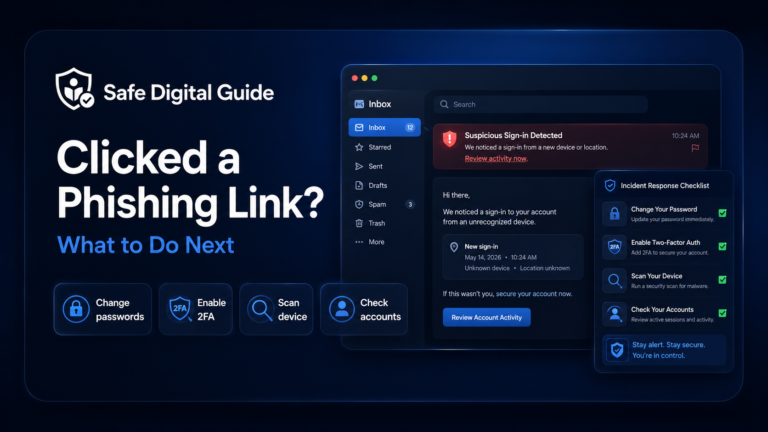
If you clicked a suspicious link before entering your password, you can also read our guide on what to do if you clicked a phishing link.
Entered My Password on a Fake Website: Emergency Checklist
Use this checklist immediately if you believe your password was typed into a fake login page.
Step 1: Change the Password from the Official Website
Do not change your password through the suspicious link. Open the real website in a new browser tab by typing the official address yourself, or open the official app directly.
Safe way
- Type the official website address manually.
- Use the official mobile app.
- Use a saved bookmark you trust.
- Check the domain carefully before logging in.
Risky way
- Going back to the fake link.
- Clicking another link in the same message.
- Searching and clicking a random ad result.
- Trusting a page because it “looks official.”
A good password should be long, unique, and not based on your name, birthday, football team, pet, or anything easy to guess.
Step 2: Turn On Two-Factor Authentication
Two-factor authentication, often called 2FA, makes it harder for someone to access your account with only your password. If an attacker captured your password, 2FA can be the difference between a failed login attempt and a stolen account.
Best option
Use an authenticator app or security key when possible. SMS codes are still better than having no 2FA, but they are not the strongest option.
After turning on 2FA, save your backup codes somewhere safe. Do not store them inside the same account you are trying to protect.
Step 3: Check Recent Login Activity
After changing your password, check whether someone already accessed your account. Many services show recent devices, sessions, locations, and login attempts.
If you find an unknown session, remove it. If the platform has a “log out everywhere” option, use it after changing your password.
Step 4: Check Your Recovery Email and Phone Number
Attackers often try to change recovery details so they can take the account back even after you change the password. This is why recovery settings are important.
Check this carefully
Make sure your recovery email, recovery phone number, backup codes, trusted devices, and linked accounts still belong to you.
If you see an unknown recovery email or phone number, remove it immediately and follow the platform’s account recovery instructions.
Step 5: Change the Password Anywhere You Reused It
If you entered your password on a fake website and used that same password on other accounts, those accounts may also be at risk. This is called password reuse, and it is one of the easiest ways attackers move from one account to another.
Start with your most important accounts first:
- Email account: this is usually the most important account to protect first.
- Banking and payment apps: check for transactions, saved cards, and login alerts.
- Social media accounts: check posts, messages, linked apps, and sessions.
- Shopping accounts: check addresses, orders, payment methods, and gift cards.
- Cloud storage: check shared files, connected devices, and account activity.
Simple rule
Every important account should have its own unique password. If one password leaks, the others should still be protected.
Step 6: Check If You Also Entered a 2FA Code
If the fake website also asked for a verification code, the situation is more urgent. A scammer may have been trying to log in to the real account at the same time and use your code to complete the login.
Never share verification codes with anyone. A real support team should not ask you to send a one-time login code through a suspicious link, email, text message, or chat.
Step 7: Watch for Signs Your Account Was Compromised
Even after changing your password, monitor the account for unusual activity. Some signs may appear immediately, while others may show up later.
If you see any of these signs, use the platform’s account recovery process and contact official support through the real website or app.
What Not to Do After Entering Your Password on a Fake Website
The first mistake was entering the password. The second mistake is often reacting too quickly in the wrong place.
Avoid this
- Do not go back to the fake website.
- Do not click “support” links on the fake page.
- Do not call phone numbers shown on the fake page.
- Do not send verification codes to anyone.
- Do not reuse the compromised password.
Do this instead
- Use the official website or app.
- Change the password immediately.
- Enable two-factor authentication.
- Review login sessions and account activity.
- Change reused passwords on other accounts.
What If You Cannot Log In Anymore?
If you cannot log in, the attacker may have changed the password or recovery details. Start the official account recovery process immediately.
Important
Only use recovery links from the official website or app. Do not trust recovery links sent by random accounts, fake support pages, or strangers in comments.
Prepare information that proves the account is yours, such as previous passwords, recovery email, phone number, device information, or account creation details. The exact process depends on the service.
Should You Contact Your Bank?
Contact your bank or payment provider if you entered banking details, card information, payment app credentials, or security codes. You should also contact them if you notice suspicious transactions.
For shopping accounts, check saved payment methods, order history, gift card balance, delivery addresses, and recent account changes.
Safer approach
If money, cards, or payment accounts may be involved, it is better to contact the official provider early than to wait and hope nothing happens.
How to Prevent This From Happening Again
The goal is not just to recover from this incident, but to make the next attack less effective.
Use unique passwords
Do not use the same password across email, banking, social media, and shopping accounts.
Turn on two-factor authentication
Use 2FA on important accounts, especially email and financial accounts.
Check links before logging in
Look carefully at the domain name before entering a password.
Use official apps and bookmarks
Avoid logging in through links from unexpected emails, texts, or social media messages.
Learn phishing warning signs
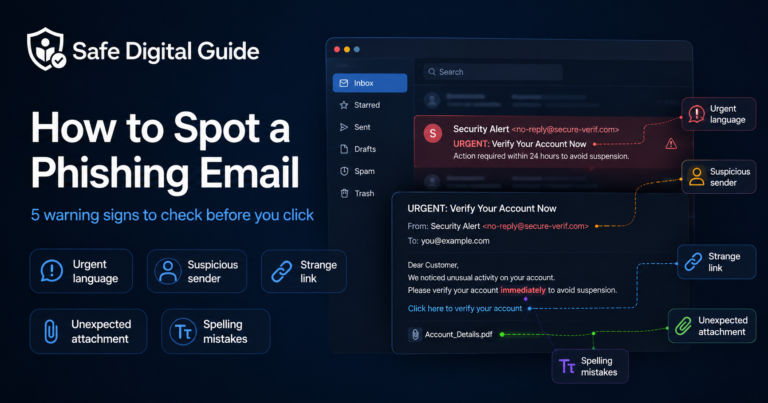
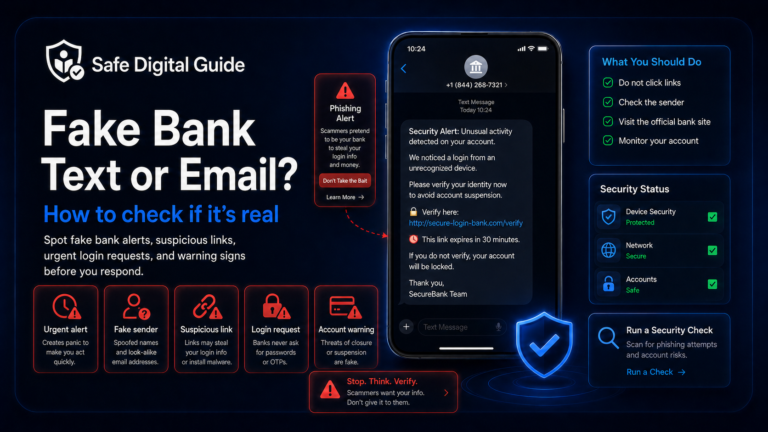
Fake urgency, strange links, misspelled domains, and unexpected attachments are common red flags.
For a broader checklist, visit our guide on how to spot a phishing email.
Helpful Official Resources
For more guidance, you can review official phishing advice from CISA and consumer protection guidance from the FTC.
Frequently Asked Questions
What should I do if I entered my password on a fake website?
Change your password immediately from the official website or app. Then enable two-factor authentication, review recent login activity, remove unknown sessions, and check your recovery information.
Can someone hack me if they have my password?
Yes, if they know the correct username or email and the account does not have strong protection. Two-factor authentication can make access much harder, even if the password was exposed.
What if I changed my password quickly?
Changing your password quickly reduces the risk, but you should still check active sessions, account activity, recovery details, and any other account where you used the same password.
What if I used the same password on other websites?
Change that password everywhere it was reused. Start with your email account, banking apps, payment accounts, social media, shopping accounts, and cloud storage.
Should I delete my account?
Usually, no. First secure the account by changing the password, enabling 2FA, checking activity, and removing unknown sessions. Delete the account only if you no longer need it or cannot secure it.
Should I report the fake website?
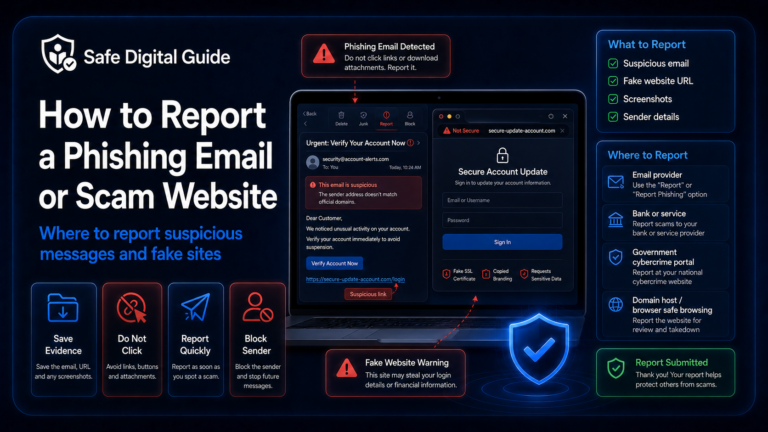
Yes, if possible. Many email providers, browsers, banks, and platforms allow users to report phishing pages or suspicious messages.
If you are still worried after entering your password on a fake website, start with the emergency checklist above and secure your most important accounts first.
Final Safety Note
Entering your password on a fake website is serious, but quick action can reduce the damage. Change the password from the official website, turn on two-factor authentication, review account activity, and secure any other account where the same password was used.
The safest habit is simple: never log in from an unexpected link. Open the official website or app yourself instead.