How to Protect Your Online Accounts from Hackers
How to Protect Your Online Accounts from Hackers
Learning how to protect your online accounts from hackers can help keep your email, banking, shopping, social media, cloud storage, and personal data safer from account takeover attempts.
This guide explains the most important account security habits: strong unique passwords, two-factor authentication, password managers, recovery settings, device security, phishing awareness, and regular activity checks.
Quick Answer: How to Protect Your Online Accounts from Hackers
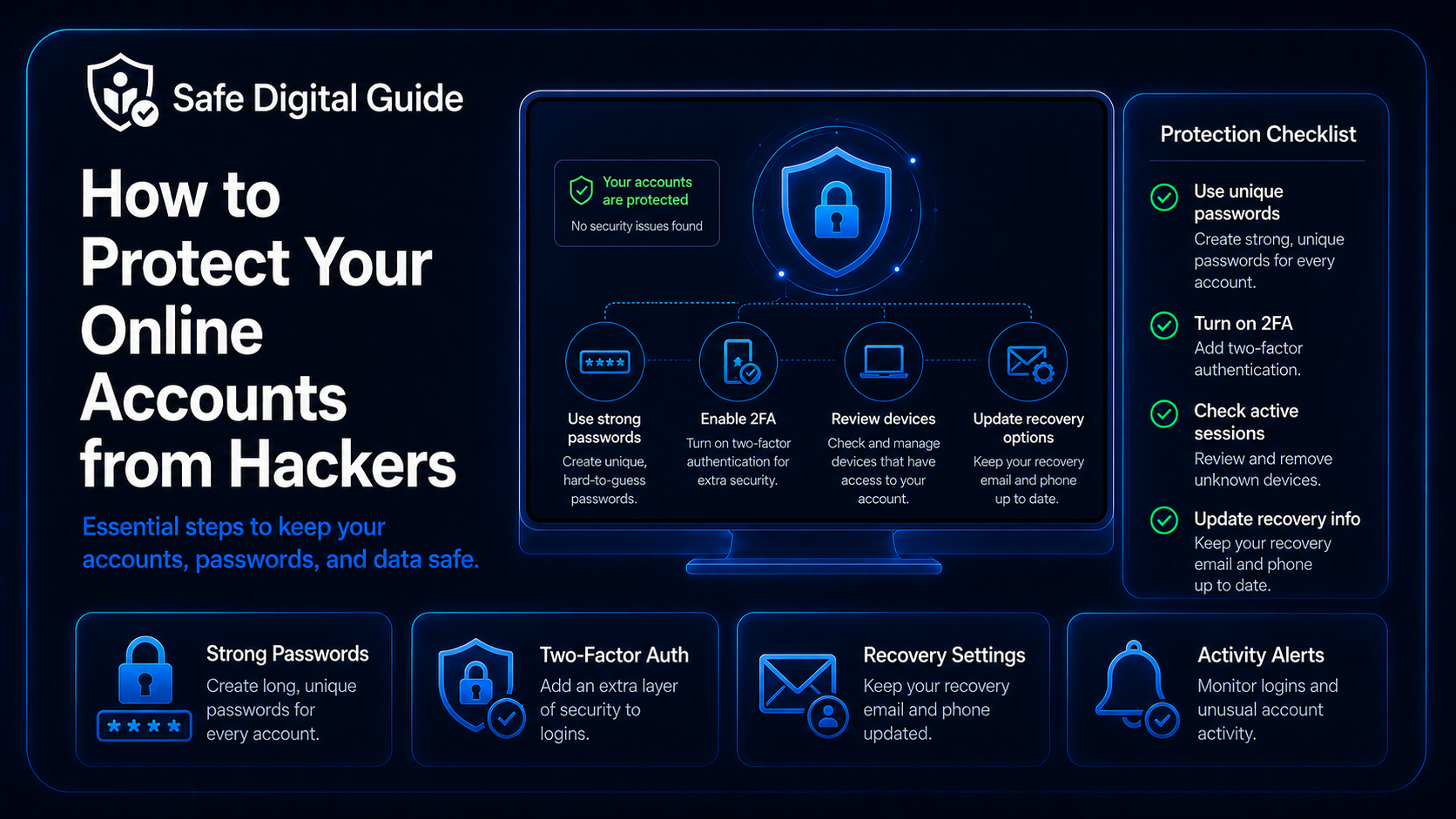
To protect your online accounts from hackers, use strong unique passwords, turn on two-factor authentication, protect your email first, use a password manager, review recovery settings, remove unknown devices, avoid phishing links, and keep your devices updated.
Simple rule
Your accounts are only as strong as your weakest login habit. A strong password, 2FA, and safe recovery settings can stop many common account attacks.
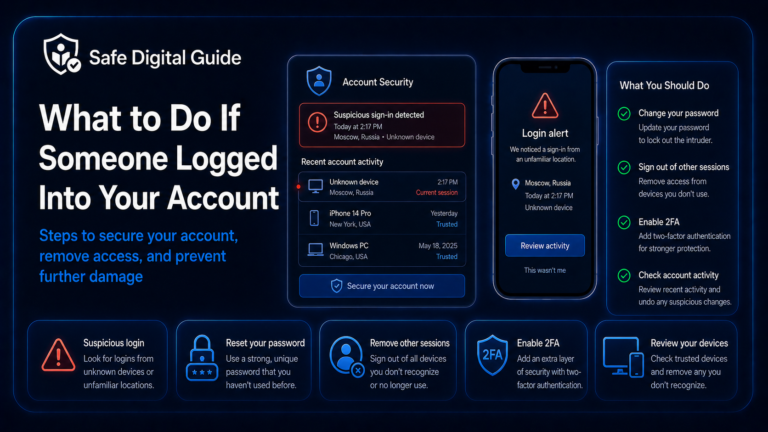
If someone already accessed one of your accounts, read Someone Logged Into My Account: What to Do Now.
Online Account Security Checklist
Use this checklist to improve your account security step by step.
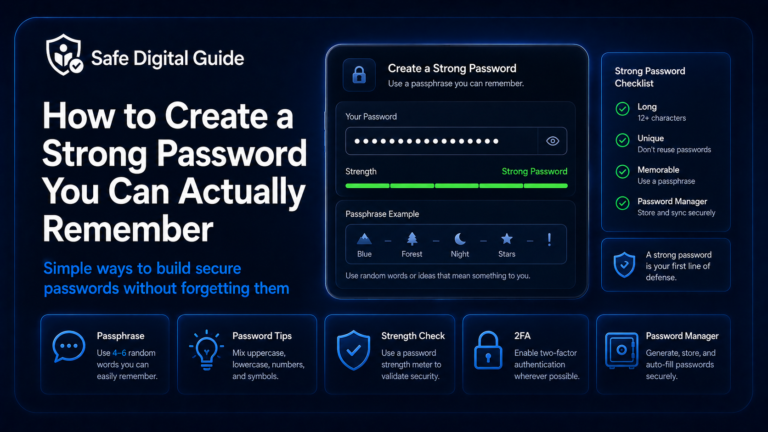
1. Use Strong Unique Passwords
The first step to protect your online accounts from hackers is using strong unique passwords. If you reuse the same password on many websites, one leak can put several accounts at risk.
Weak password habits
- Using the same password everywhere.
- Using short passwords.
- Using names, birthdays, or personal details.
- Only adding a number or symbol to an old password.
- Saving passwords in unsafe notes or messages.
Stronger password habits
- Use a unique password for every account.
- Make passwords long and hard to guess.
- Use a passphrase when you need to remember it.
- Use a password manager for complex passwords.
- Change exposed or reused passwords quickly.
For a full beginner-friendly guide, read How to Create a Strong Password You Can Actually Remember.
2. Turn On Two-Factor Authentication
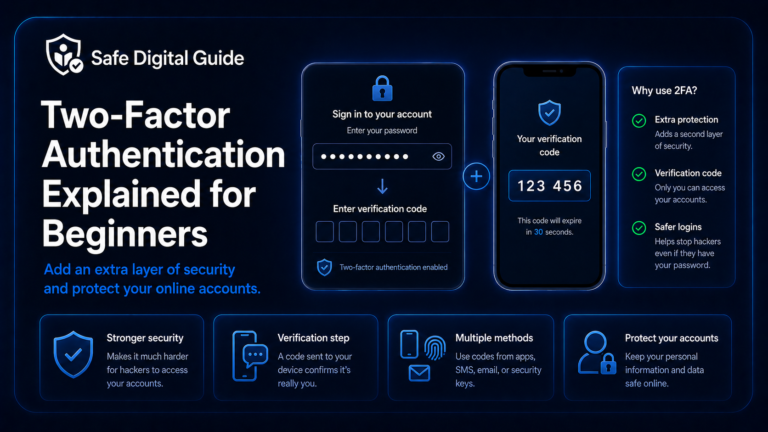
Two-factor authentication adds a second login step. Even if someone steals your password, they may still be blocked if they cannot complete the second verification step.
Never share codes
A scammer may ask for your verification code to “secure” your account. Do not share login codes, backup codes, or approval prompts with anyone.
Learn more here: Two-Factor Authentication Explained for Beginners.
3. Protect Your Email Account First
Your email account is one of your most important accounts. If someone controls your email, they may be able to reset passwords for other accounts.
Email is the master key
Protect your email with a unique password, two-factor authentication, safe recovery options, and regular activity checks.
Check your email account for unknown devices, forwarding rules, filters, recovery changes, connected apps, and sent messages you do not recognize.
If you are worried your email has already been accessed, read What to Do If Your Email Is Hacked: 10 Urgent Steps.
4. Use a Password Manager
A password manager can help you create, store, and use strong unique passwords for each account. This makes it easier to avoid password reuse.
Without a password manager
- You may reuse passwords.
- You may choose weaker passwords to remember them.
- You may store passwords in unsafe notes.
- You may forget which password belongs to each account.
With a password manager
- You can generate strong passwords.
- You can store unique passwords safely.
- You only need to remember one strong master password.
- You can review weak, reused, or exposed passwords.
For the full setup guide, read Password Manager Guide for Beginners.
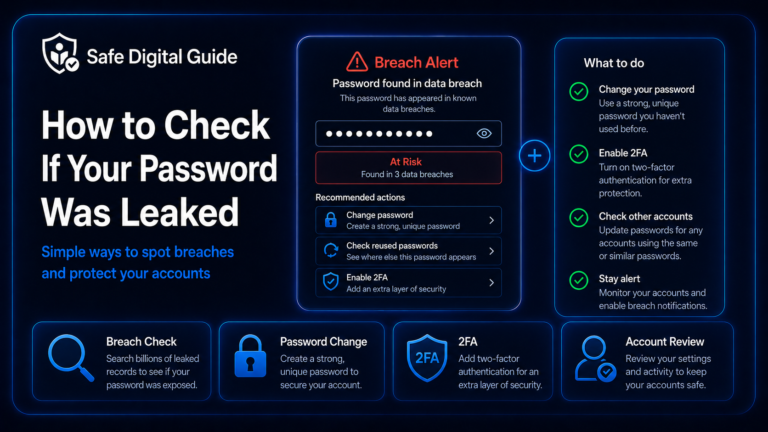
5. Check If Your Password Was Leaked
Data breaches can expose old passwords, usernames, emails, phone numbers, and other account details. If your password was leaked and reused, attackers may try it on multiple websites.
Use trusted breach-checking tools and avoid entering your real password into random websites. Read How to Check If Your Password Was Leaked.
6. Review Recovery Settings
Recovery settings help you regain access if you forget a password or get locked out. But if recovery settings are weak or outdated, attackers may abuse them.
If someone changes your recovery information, they may be able to take the account back later. Review these settings regularly.
7. Review Active Sessions and Devices
Many platforms let you see which devices are signed into your account. Reviewing active sessions helps you spot unauthorized access early.
Open account security settings
Look for devices, sessions, login activity, or security activity.
Check unfamiliar access
Look for unknown devices, browsers, locations, or login times.
Sign out unknown devices
Remove sessions you do not recognize or no longer use.
Change the password if needed
If you see suspicious activity, change your password and enable 2FA.
If you already saw an unknown login, read Someone Logged Into My Account: What to Do Now.
8. Avoid Phishing Links and Fake Login Pages
Many account hacks begin with phishing. A fake email, text message, ad, or website can trick you into entering your password on a fake login page.
Common phishing signs
- Urgent account warnings.
- Fake login pages.
- Strange links or misspelled domains.
- Requests for passwords or verification codes.
- Messages claiming your account will be suspended.
Safer habits
- Do not click unexpected login links.
- Open the official app or website yourself.
- Check the URL before entering passwords.
- Never share 2FA codes.
- Report suspicious emails when possible.
For phishing basics, read How to Spot a Phishing Email and How to Tell If a Website Is Fake.
9. Keep Your Devices Updated
Account security also depends on the devices you use. If your phone, computer, browser, or apps are outdated, attackers may have more ways to steal information or access accounts.
If you suspect malware or unsafe software, run a security scan with trusted tools and avoid logging into important accounts until the device is clean.
10. Remove Suspicious Connected Apps
Some services allow third-party apps and extensions to access your account. If one of those apps is unsafe, outdated, or unnecessary, it may create risk.
- Review apps connected to your email account.
- Remove old apps you no longer use.
- Remove apps you do not recognize.
- Review browser extensions and permissions.
- Be careful with tools that can read messages, contacts, files, or payment information.
Clean up permissions
If an app does not need access anymore, remove it. Fewer connected apps means fewer possible entry points.
11. Watch for Suspicious Activity
Protecting your online accounts from hackers is not a one-time task. You should occasionally check for unusual activity, especially after a breach, phishing attempt, or login alert.
If something looks wrong, change the password, sign out unknown devices, enable 2FA, and contact official support if needed.
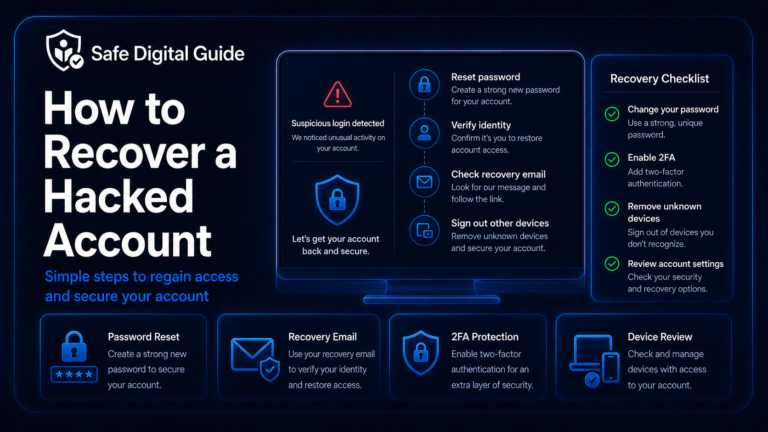
12. What to Do If You Think an Account Was Hacked
If you notice suspicious activity, act quickly. The faster you respond, the easier it may be to limit damage.
Change the password
Use a new strong password from the official website or app.
Sign out unknown devices
Remove unfamiliar sessions, browsers, phones, and computers.
Enable two-factor authentication
Add a second login step to reduce future risk.
Review account damage
Check messages, orders, settings, recovery options, and connected apps.
If you are locked out, use How to Recover a Hacked Account: Step-by-Step Guide.
Account Protection Priorities
Start with the accounts that would cause the most damage if they were compromised.
Secure these first
- Email accounts.
- Banking and payment accounts.
- Password manager account.
- Cloud storage accounts.
- Work, school, or business accounts.
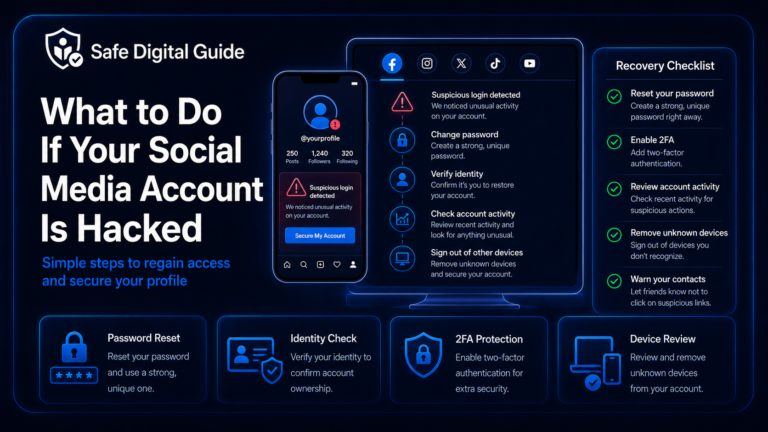
- Social media accounts.
Then review
- Shopping accounts with saved cards.
- Gaming accounts.
- Streaming accounts.
- Old accounts you no longer use.
- Forums and community accounts.
- Apps connected to your email.
Related Guides
These guides can help you strengthen your online account security:
Helpful Official Resources
For more guidance, review password security advice from CISA, account security guidance from Google Account Help, and online safety tips from the NCSC.
Frequently Asked Questions
How do I protect my online accounts from hackers?
Use strong unique passwords, enable two-factor authentication, protect your email account, use a password manager, review recovery settings, avoid phishing links, and monitor account activity.
What account should I protect first?
Protect your email account first. Your email can reset passwords for many other services, so it should have a strong unique password and two-factor authentication.
Is two-factor authentication necessary?
Yes, especially for important accounts. Two-factor authentication adds protection if your password is stolen, leaked, or guessed.
Should I use a password manager?
A password manager is useful if you have many accounts or reuse passwords. It helps create and store unique passwords for each account.
What should I do if I see an unknown login?
Change your password, sign out unknown devices, enable two-factor authentication, check recovery settings, and review recent account activity.
Can phishing lead to account hacking?
Yes. Fake login pages and phishing links can steal passwords and verification codes. Always open important websites or apps directly instead of clicking suspicious links.
Knowing how to protect your online accounts from hackers can help you prevent account takeovers before they happen.
Final Safety Note
Account security is built from simple habits repeated consistently: strong unique passwords, two-factor authentication, safe recovery settings, careful login behavior, and regular activity checks.
The safest habit is simple: protect your email first, use unique passwords everywhere, enable 2FA, and never enter login details on suspicious pages.