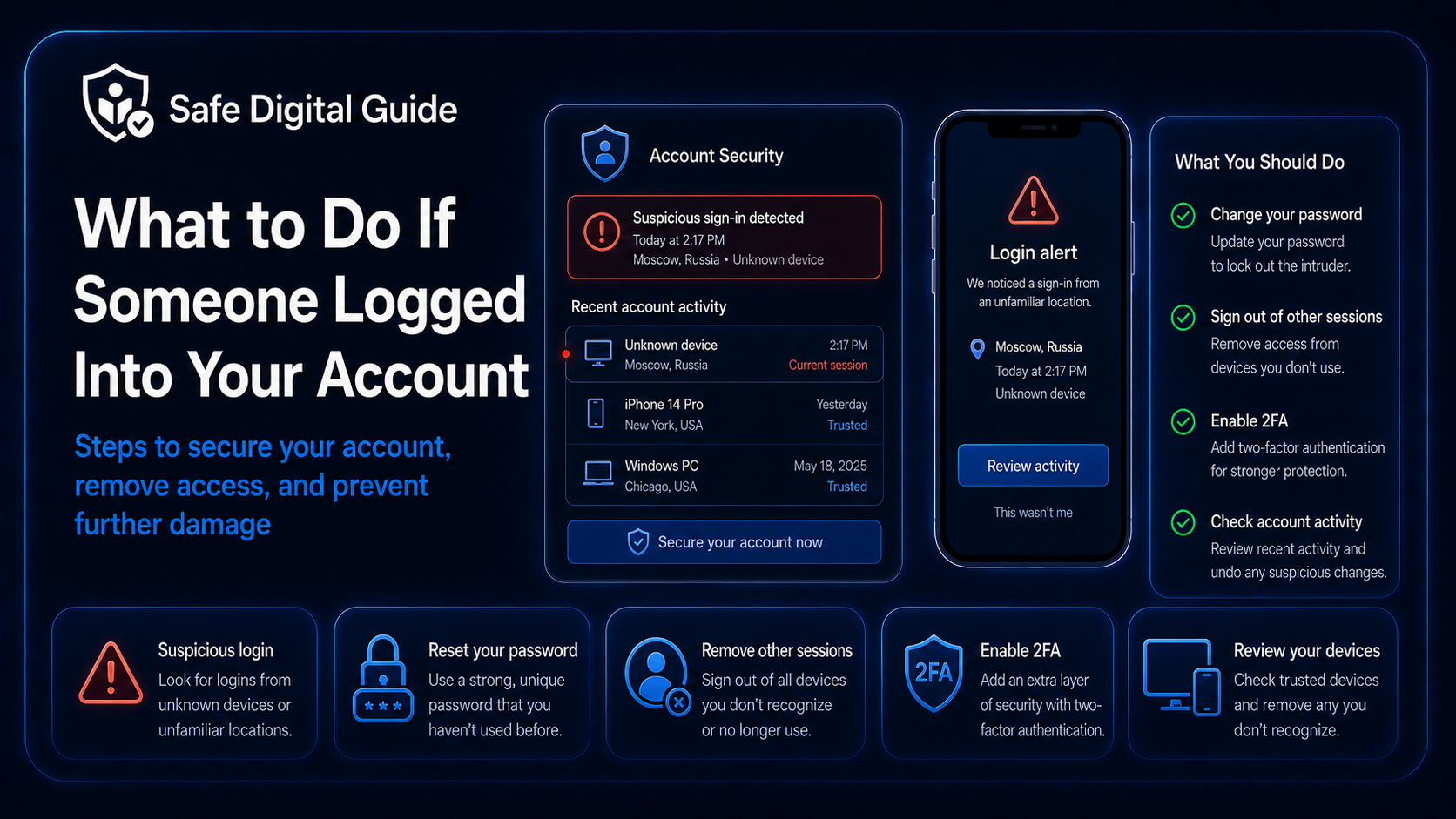
What to Do If Someone Logged Into Your Account
Someone Logged Into My Account: What to Do Now
If you searched “someone logged into my account,” act quickly. An unknown login can mean someone has your password, your session was stolen, or your account security was weakened.
This guide explains what to do if someone logged into your account, how to remove unknown devices, change your password, check account activity, enable two-factor authentication, and protect your personal information.
Quick Answer: Someone Logged Into My Account
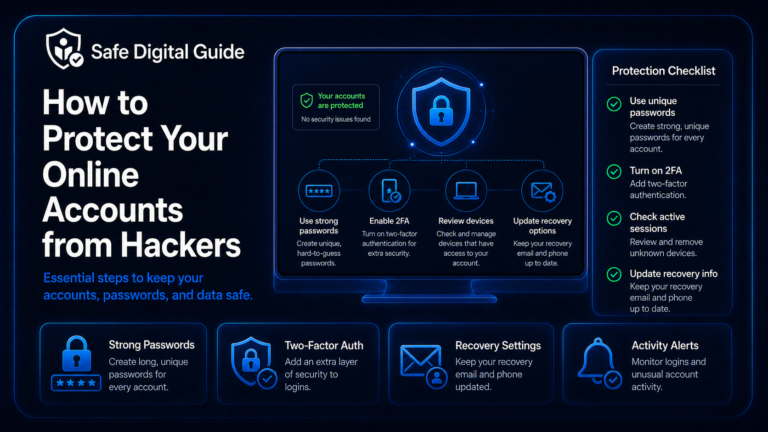
If someone logged into my account, change the password immediately, sign out of unknown devices, enable two-factor authentication, review recent activity, check recovery settings, and secure any connected accounts. If money, private messages, or personal data were involved, act even faster.
Do not ignore unknown logins
A login alert from an unfamiliar device or location can be a sign that your password was stolen, reused, guessed, or entered on a fake website.
If this happened to your email account, read our full guide on what to do if your email is hacked.
Unknown Login Emergency Checklist
Use this checklist if someone logged into your account or you received a suspicious login alert.
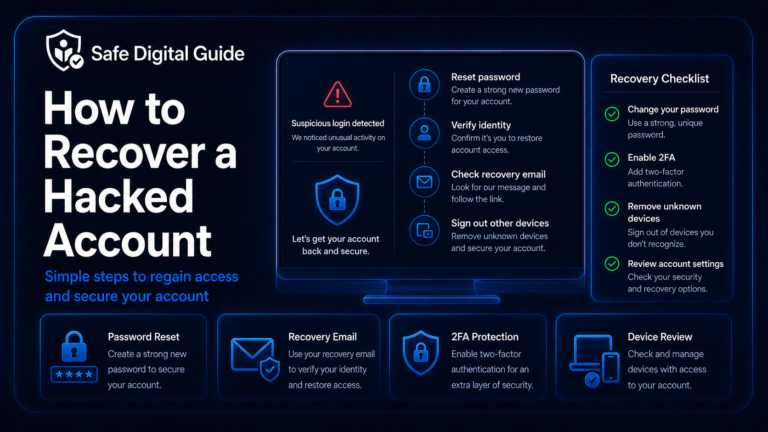
1. Change Your Password Immediately
If someone logged into my account, the first step is changing the password from the official website or app. Do not use links from suspicious emails, text messages, or pop-ups.
Use a stronger password
- Make it long and unique.
- Do not reuse an old password.
- Do not use personal details.
- Do not use small variations of the old password.
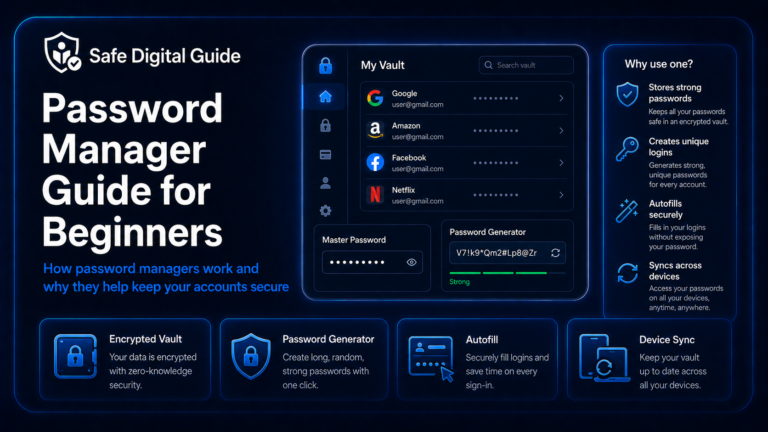
- Use a password manager if possible.
Avoid these mistakes
- Changing the password through a suspicious link.
- Using the same password again.
- Only adding one number or symbol.
- Sharing your password with anyone.
- Saving it in an unsafe note or message.
For a simple password guide, read How to Create a Strong Password You Can Actually Remember.
2. Sign Out of Unknown Devices
Changing your password is important, but it may not automatically remove every active session. Some platforms let you review active devices and sign out of sessions you do not recognize.
Important step
Sign out of unknown devices after changing your password. This can remove access from browsers, phones, computers, or apps that should not be connected to your account.
Look for unfamiliar devices, locations, browsers, IP addresses, or login times. If the platform offers “sign out of all devices,” use it and then sign back in only on devices you trust.
3. Enable Two-Factor Authentication
Two-factor authentication adds a second step when you log in. If someone has your password, 2FA can help stop them from accessing the account again.
Learn the basics here: Two-Factor Authentication Explained for Beginners.
4. Review Recent Account Activity
If someone logged into your account, review what happened during the suspicious session. The attacker may have changed settings, sent messages, downloaded data, added devices, or attempted purchases.
Check recent logins, sent messages, purchases, password changes, profile edits, connected apps, saved devices, and any security alerts.
5. Check Recovery Email and Phone Number
Attackers sometimes change recovery information so they can get back into the account later. After an unknown login, check that your recovery email, phone number, backup codes, and trusted devices are still yours.
Do not skip recovery settings
If recovery information was changed, the attacker may be able to reset your password again even after you secure the account.
6. Remove Unknown Connected Apps
Some accounts allow third-party apps, browser extensions, tools, or services to connect to your profile. If someone logged into your account, review these connections carefully.
- Remove apps you do not recognize.
- Remove browser extensions you do not trust.
- Review permissions granted to external tools.
- Disconnect old devices or services you no longer use.
- Revoke access for anything suspicious.
This is especially important for email, cloud storage, social media, password managers, and business accounts.
7. Check for Messages, Purchases, or Changes You Did Not Make
Unknown access can lead to hidden damage. The attacker may use your account to scam contacts, buy items, change account settings, or collect private information.
Check for activity
- Messages you did not send.
- Orders or payments you did not make.
- Files you did not upload or download.
- Settings you did not change.
- New contacts, devices, or connected apps.
Take action
- Cancel suspicious orders if possible.
- Contact support through official channels.
- Warn contacts if scam messages were sent.
- Save screenshots of suspicious activity.
- Report fraud if money was involved.
8. Secure the Email Connected to the Account
If someone logged into your account, your email may also be at risk. Many accounts use email for password resets, login alerts, security codes, and recovery links.
Email is the master key
If an attacker controls your email, they may reset passwords for other accounts. Secure your email before moving on.
Change your email password, enable 2FA, check forwarding rules, review recovery settings, and sign out unknown devices. Use this guide if needed: What to Do If Your Email Is Hacked.
9. Scan Your Device for Malware
Someone may have logged into your account because your password was stolen through phishing, malware, a fake login page, or a malicious browser extension.
If the login happened after clicking a suspicious link, read What to Do If You Clicked a Phishing Link.
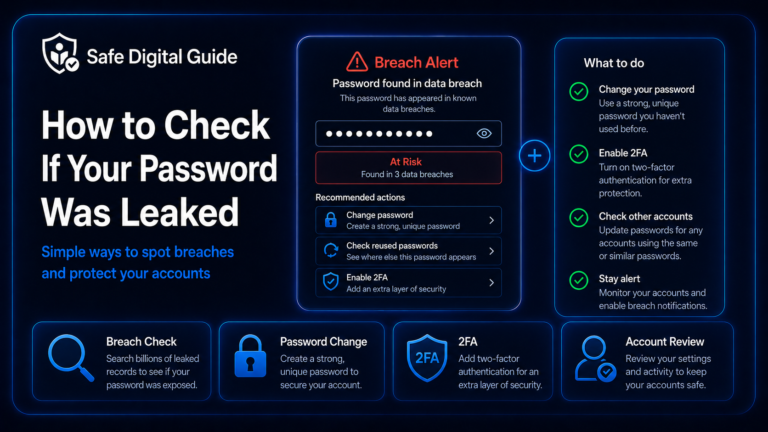
10. Protect Other Accounts That Use the Same Password
If you reused the same password on other websites, those accounts may also be at risk. Attackers often try stolen passwords on many services.
List reused passwords
Think of any other accounts where you used the same or similar password.
Change them immediately
Use unique passwords for every important account.
Enable 2FA
Add two-factor authentication to important accounts.
Review activity
Check each account for unknown logins, settings changes, or suspicious activity.
Password reuse is one of the most common ways one compromised account turns into many compromised accounts.
How to Know If the Login Alert Is Real
Sometimes login alerts are real security notifications. Other times, scammers send fake login alerts to make you click a phishing link.
Suspicious alert signs
- The message pushes you to click a link.
- The sender address looks strange.
- The link does not match the real website.
- The message asks for your password or codes.
- The alert creates panic or urgency.
Safer way to check
- Do not click the message link.
- Open the official app directly.
- Type the website manually.
- Check security alerts inside the real account.
- Contact official support if needed.
If you are unsure whether the message is fake, read Fake Bank Text or Email? How to Check If It’s Real and How to Tell If a Website Is Fake.
What Not to Do After an Unknown Login
If someone logged into your account, avoid these common mistakes.
Do not do this
- Do not ignore the login alert.
- Do not click suspicious recovery links.
- Do not reuse the same password.
- Do not leave unknown devices signed in.
- Do not share verification codes with anyone.
Do this instead
- Change the password from the official app or website.
- Sign out unknown devices.
- Enable two-factor authentication.
- Review recent activity and settings.
- Secure connected accounts.
Related Guides
These guides can help you secure your account after an unknown login:
Helpful Official Resources
For more guidance, review account security advice from Google Account Help, account recovery guidance from Microsoft Support, and password safety guidance from CISA.
Frequently Asked Questions
Someone logged into my account. What should I do first?
Change your password immediately from the official website or app. Then sign out unknown devices, enable two-factor authentication, and review recent account activity.
Does an unknown login mean my account was hacked?
Not always, but it is a serious warning sign. If the device, location, or time does not match you, treat it as suspicious and secure the account.
Should I click the login alert email?
Avoid clicking links in unexpected login alerts. Open the official app or type the website manually to check alerts inside your real account.
Should I change my password after an unknown login?
Yes. Use a new, unique password that you have never used before. Also change the same password anywhere else you reused it.
Can someone stay logged in after I change my password?
Sometimes active sessions can remain open. That is why you should sign out unknown devices or use the “sign out of all devices” option when available.
What if the unknown login was on my email account?
Secure it immediately. Your email can reset passwords for other accounts, so change the password, enable 2FA, check recovery options, and review forwarding rules.
If someone logged into my account, the safest response is to act fast, remove access, strengthen login security, and review what changed.
Final Safety Note
An unknown login should never be ignored. Change your password, sign out unknown devices, enable two-factor authentication, check recovery settings, and review account activity.
The safest habit is simple: treat every unexpected login alert seriously until you confirm it was really you.