How to Secure Your Email Account
How to Secure Your Email Account: 10 Essential Steps
Learning how to secure your email account is one of the most important steps you can take to protect your online identity, passwords, personal data, banking alerts, social media accounts, and recovery links.
Your email account is often the master key to your digital life. This guide explains how to secure your email account with a strong password, two-factor authentication, recovery settings, device checks, app permissions, and safer email habits.
Quick Answer: How to Secure Your Email Account
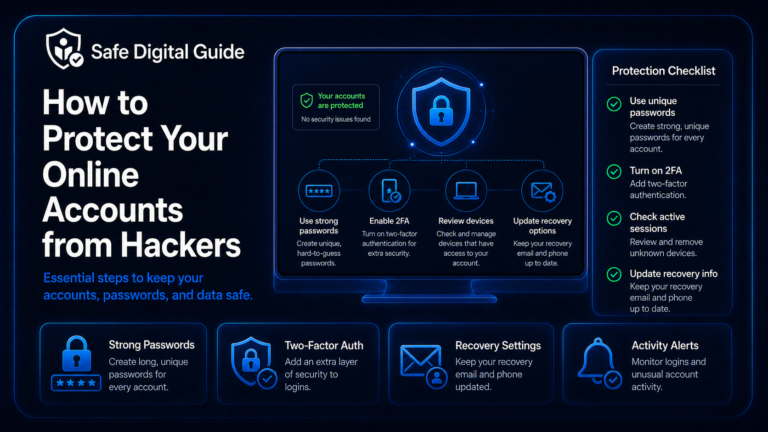
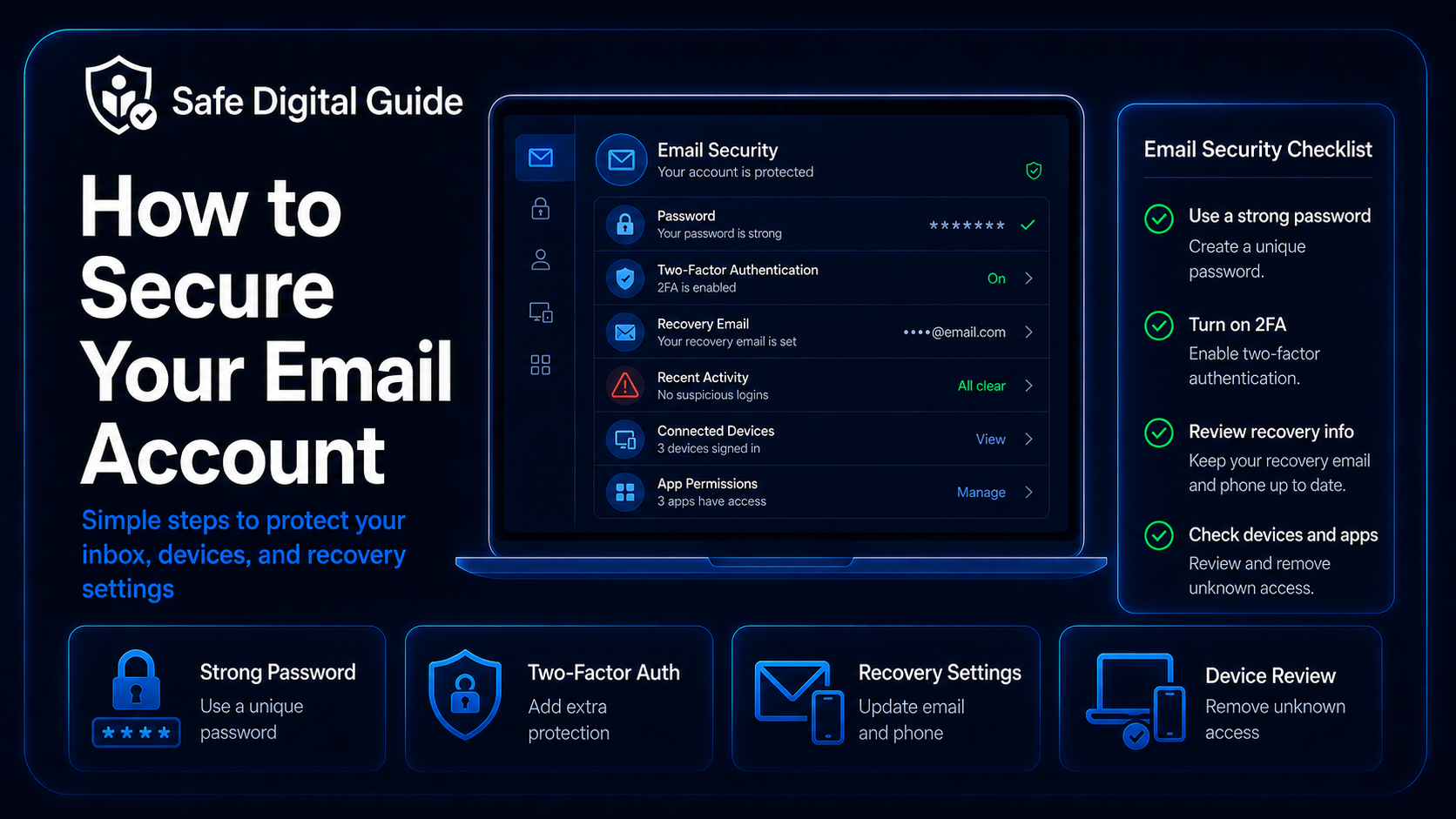
To secure your email account, use a strong unique password, turn on two-factor authentication, review recovery email and phone settings, check forwarding rules and filters, sign out unknown devices, remove suspicious connected apps, and avoid phishing links.
Simple rule
Protect your email first. If someone controls your email, they may be able to reset passwords for many of your other accounts.
If your email may already be compromised, read our emergency guide on what to do if your email is hacked.
Email Security Checklist
Use this checklist to improve your email security step by step.
1. Use a Strong Unique Password
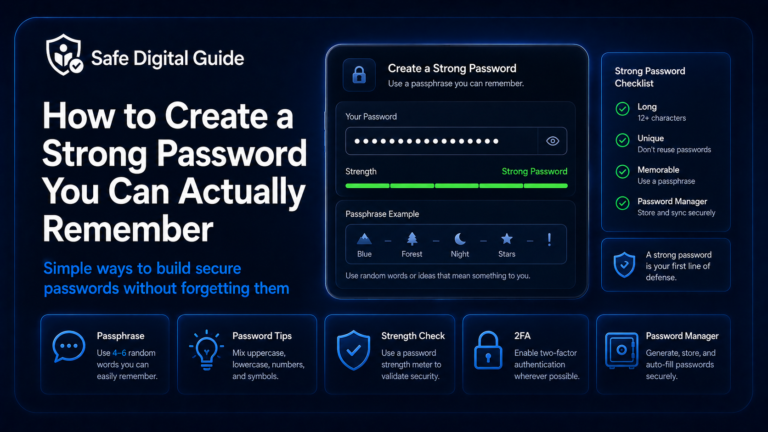
The first step to secure your email account is using a password that is strong, unique, and not reused on any other website. Your email password should be one of your strongest passwords.
Weak email password habits
- Using the same password on other accounts.
- Using your name, birthday, city, pet, or username.
- Using short passwords.
- Only adding a number or symbol to an old password.
- Saving the password in an unsafe note or message.
Strong email password habits
- Use a long password or passphrase.
- Make it unique to your email account.
- Do not reuse old passwords.
- Use a password manager if possible.
- Change it immediately if it was leaked or exposed.
For a full beginner-friendly guide, read How to Create a Strong Password You Can Actually Remember.
2. Turn On Two-Factor Authentication
Two-factor authentication adds a second step when someone tries to log in. This helps protect your email account even if your password is stolen, leaked, or guessed.
Never share login codes
A scammer may pretend to be support and ask for your verification code. Do not share two-factor authentication codes, backup codes, or approval prompts with anyone.
Learn the basics here: Two-Factor Authentication Explained for Beginners.
3. Review Your Recovery Email and Phone Number
Recovery settings help you get back into your email account if you forget your password or get locked out. But if these settings are outdated or changed by an attacker, your account can stay at risk.
Do not skip recovery settings
If someone changes your recovery email or phone number, they may be able to reset your password again later.
4. Check Forwarding Rules and Filters
One of the most important ways to secure your email account is checking forwarding rules, filters, and automatic actions. Attackers sometimes use these settings to secretly copy your emails or hide security alerts.
Check forwarding, filters, blocked senders, automatic replies, mailbox rules, labels, and archive settings. Remove anything you do not recognize.
5. Sign Out Unknown Devices and Sessions
Your email account may stay open on phones, computers, browsers, and apps. If you see a device or session you do not recognize, sign it out immediately.
Use “sign out of all devices” if needed
If your email provider offers this option, use it after changing your password. Then sign back in only on devices you trust.
Look for unfamiliar devices, browsers, locations, login times, IP addresses, or apps. If something looks wrong, change your password and review account activity.
If you already saw an unknown login, read Someone Logged Into My Account: What to Do Now.
6. Remove Suspicious Connected Apps
Email accounts can be connected to third-party apps, calendar tools, cloud tools, browser extensions, productivity apps, mobile mail apps, or business services. Some may have permission to read, send, or manage your email.
- Remove apps you do not recognize.
- Remove old tools you no longer use.
- Review apps that can read or send email.
- Remove suspicious browser extensions.
- Disconnect devices or services you do not trust.
- Review calendar, contacts, and cloud access permissions.
Connected apps can be powerful
If an app has access to your email, it may be able to read messages, send emails, view contacts, or access files. Remove anything unnecessary.
7. Watch for Phishing Emails
Phishing emails are one of the most common ways attackers steal email passwords. A fake login page can look like your real email provider and ask you to “verify” your account.
Phishing warning signs
- Urgent account warnings.
- Fake login pages.
- Strange sender addresses.
- Links that do not match the real website.
- Requests for your password or verification code.
- Unexpected attachments or file downloads.
Safer habits
- Do not click unexpected login links.
- Open your email provider directly.
- Check the website address before logging in.
- Never share 2FA codes.
- Report suspicious emails when possible.
- Delete obvious scams after reporting them.
For a full beginner guide, read How to Spot a Phishing Email.
8. Keep Your Devices Secure
Your email security also depends on the devices you use. If your phone, computer, browser, or mail app is unsafe, your email account can be at risk even with a strong password.
If you recently clicked a suspicious link or downloaded an unknown file, run a security scan with trusted tools.
9. Check If Your Email Password Was Leaked
If your email password was leaked in a data breach, attackers may try to use it to access your inbox. This becomes even more dangerous if you reused the same password elsewhere.
Password reuse is risky
If your email password is also used on shopping, social media, gaming, cloud, or banking accounts, one leak can put multiple accounts at risk.
Use trusted breach-checking tools, browser warnings, or password manager alerts. Do not type your real password into random websites.
Read the full guide: How to Check If Your Password Was Leaked.
10. Use a Password Manager
A password manager helps you use a unique password for your email and every other important account. This reduces the risk of one leaked password affecting your entire digital life.
Without a password manager
- You may reuse passwords.
- You may choose weaker passwords to remember them.
- You may store passwords in unsafe notes.
- You may forget which password belongs to each account.
With a password manager
- You can generate strong passwords.
- You can store unique passwords safely.
- You only need to remember one master password.
- You can review weak, reused, or exposed passwords.
For setup help, read Password Manager Guide for Beginners.
11. What to Do If Your Email Was Hacked
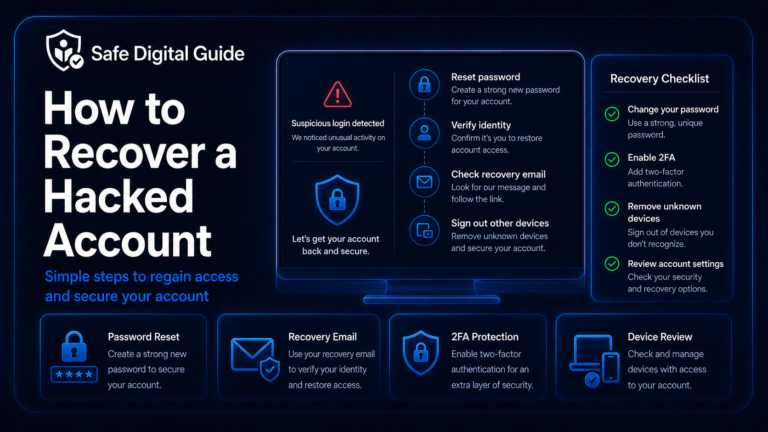
If your email was already hacked, securing it becomes urgent. A hacked email account can be used to reset passwords, access private messages, scam contacts, and take over other accounts.
Change your password
Use a new strong password that you have never used before.
Sign out unknown devices
Remove unfamiliar phones, browsers, computers, and sessions.
Enable two-factor authentication
Add a second login step to reduce future risk.
Review settings and activity
Check recovery info, forwarding rules, filters, sent messages, and connected apps.
For the full emergency checklist, read What to Do If Your Email Is Hacked: 10 Urgent Steps.
12. Protect Accounts Connected to Your Email
Once your email account is secure, review important accounts connected to it. Email is often used for login alerts, password resets, receipts, identity checks, and recovery links.
Check these accounts first
- Banking and payment accounts.
- Social media accounts.
- Cloud storage accounts.
- Password manager account.
- Shopping accounts with saved cards.
- Work, school, or business accounts.
What to review
- Password changes.
- Unknown logins.
- Recovery email and phone settings.
- Two-factor authentication.
- Connected apps and devices.
- Payment methods and account activity.
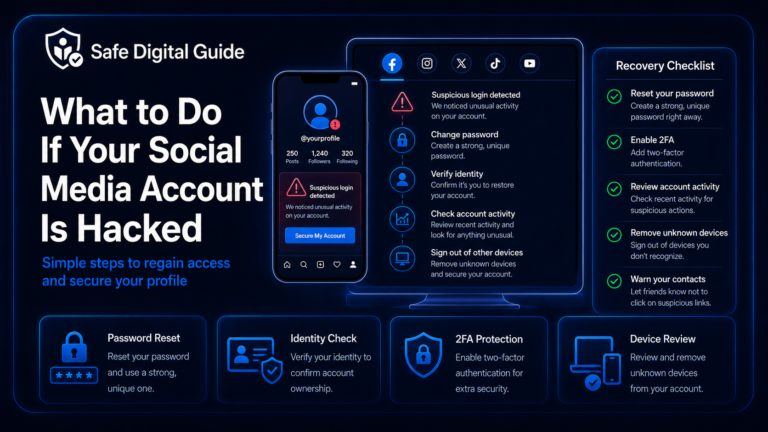
If a social profile was affected, read What to Do If Your Social Media Account Is Hacked.
What Not to Do When Securing Your Email
Avoid these common mistakes when trying to secure your email account.
Do not do this
- Do not reuse your email password elsewhere.
- Do not ignore forwarding rules and filters.
- Do not leave unknown devices signed in.
- Do not share verification codes.
- Do not click suspicious recovery links.
- Do not forget to check connected apps.
Do this instead
- Use a unique email password.
- Enable two-factor authentication.
- Review recovery settings regularly.
- Remove unknown devices and apps.
- Open email security settings directly.
- Check account activity after alerts.
Related Guides
These guides can help you protect your email and connected accounts:
- What to Do If Your Email Is Hacked
- How to Create a Strong Password
- Two-Factor Authentication Explained
- Password Manager Guide for Beginners
- Someone Logged Into My Account
- How to Recover a Hacked Account
- What to Do If Your Social Media Account Is Hacked
- How to Check If Your Password Was Leaked
- How to Spot a Phishing Email
Helpful Official Resources
For more guidance, review account security advice from Google Account Help, Microsoft account security help from Microsoft Support, and email security tips from the NCSC.
Frequently Asked Questions
How do I secure my email account?
Use a strong unique password, enable two-factor authentication, review recovery settings, sign out unknown devices, remove suspicious connected apps, and check forwarding rules or filters.
Why is email security so important?
Your email can often reset passwords for other accounts. If someone controls your email, they may be able to access social media, shopping, banking, cloud, or work accounts.
Should I use two-factor authentication on email?
Yes. Email should be one of the first accounts you protect with two-factor authentication because it controls many password resets and security alerts.
What are email forwarding rules?
Forwarding rules can automatically send your emails to another address. Attackers may use them to secretly receive your messages or hide security alerts.
How often should I check email account activity?
Check it whenever you receive a security alert, after clicking a suspicious link, after a data breach, or whenever something feels unusual.
What should I do if my email was hacked?
Change your password, sign out unknown devices, enable two-factor authentication, check recovery settings, remove suspicious apps, review forwarding rules, and secure connected accounts.
Knowing how to secure your email account helps protect not only your inbox, but also the accounts connected to it.
Final Safety Note
Your email account is one of the most important accounts you own. It controls password resets, login alerts, recovery messages, receipts, private conversations, and personal data.
The safest habit is simple: use a unique email password, enable two-factor authentication, review recovery settings, remove unknown access, and never enter your email password on suspicious pages.