Password Manager Guide for Beginners
Password Manager Guide for Beginners
This password manager guide explains what a password manager is, how it works, whether password managers are safe, and how beginners can use one to protect their accounts.
If you struggle to remember passwords, reuse the same password everywhere, or want stronger account security, a password manager can help you create, store, and use unique passwords safely.
Quick Answer: Password Manager Guide
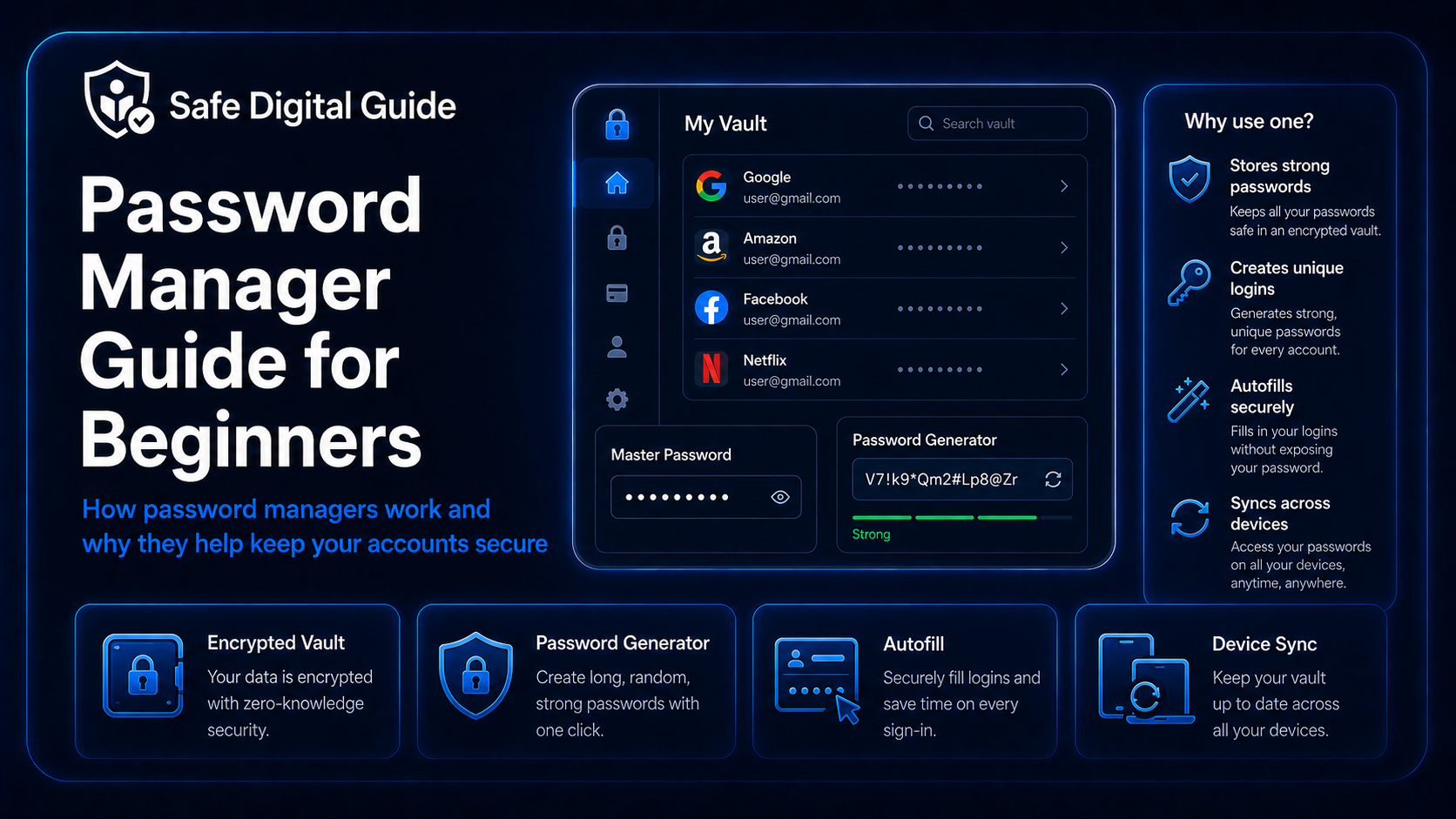
A password manager is an app that stores your passwords in a secure vault. Instead of remembering every password, you remember one strong master password. The password manager can then create strong unique passwords, save them, and fill them in when you log in.
Simple rule
A password manager helps you stop reusing weak passwords. It makes it easier to use a different strong password for every important account.
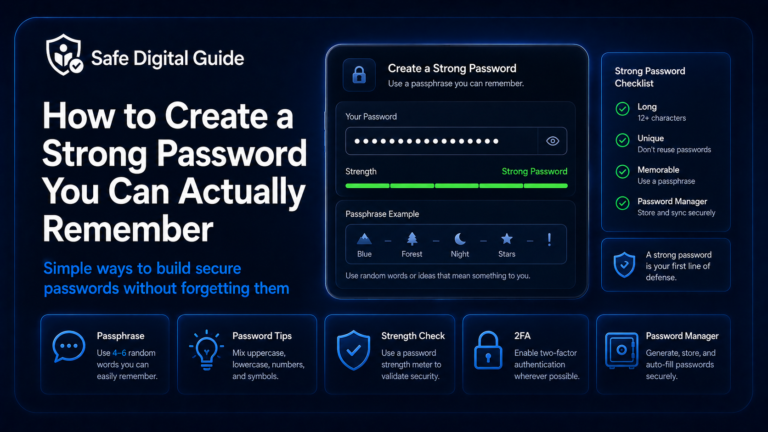
If you are new to password security, start with our guide on how to create a strong password.
Password Manager Checklist
Use this checklist when choosing and setting up a password manager for the first time.
1. What Is a Password Manager?
A password manager is a tool that stores your login details in a protected vault. It can remember your usernames, passwords, secure notes, and sometimes payment or identity details.
Without a password manager
- You may reuse the same password.
- You may choose short passwords to remember them.
- You may store passwords in unsafe notes.
- You may forget which password belongs to each account.
- You may delay changing weak passwords.
With a password manager
- You can use unique passwords for each account.
- You can generate strong random passwords.
- You only need to remember one master password.
- You can autofill logins more safely.
- You can organize and review your accounts.
The main goal is simple: reduce password reuse and make stronger passwords easier to manage.
2. How Does a Password Manager Work?
A password manager stores your passwords inside an encrypted vault. You unlock that vault with your master password. Once unlocked, the app can show, copy, generate, or autofill your passwords.
You create a master password
This is the main password you use to unlock your password vault.
You save your logins
The manager stores usernames, passwords, websites, and account details.
You generate stronger passwords
The app can create long, random, unique passwords for each account.
You autofill safely
When you visit a saved website or app, the manager can fill in the correct login.
3. Are Password Managers Safe?
Password managers can be safe when you choose a trusted provider, use a strong master password, enable two-factor authentication, and keep your devices secure.
Important
A password manager is not magic. It still depends on your master password, your device security, your recovery settings, and whether you avoid phishing attempts.
For most beginners, using a reputable password manager is safer than reusing the same weak password across many websites.
4. Why Password Managers Are Useful
The biggest benefit of a password manager is that it makes good password habits easier. You no longer need to remember dozens of complex passwords.
5. What Is a Master Password?
Your master password is the password that unlocks your password manager. It is the most important password you create, because it protects the vault that stores your other passwords.
Master password rule
Your master password should be long, unique, memorable, and never reused on any other website or app.
A memorable passphrase can work well as a master password. Use something long and personal to your memory, but not obvious to other people.
For help creating one, read How to Create a Strong Password You Can Actually Remember.
6. Should You Use a Password Manager?
A password manager is useful if you have more than a few online accounts, especially if you reuse passwords or struggle to remember strong passwords.
A password manager may help if you
- Reuse the same password on multiple accounts.
- Forget passwords often.
- Use simple passwords to make them easier to remember.
- Have important accounts like email, banking, cloud, or work tools.
- Want to improve security without memorizing dozens of logins.
You still need to
- Create a strong master password.
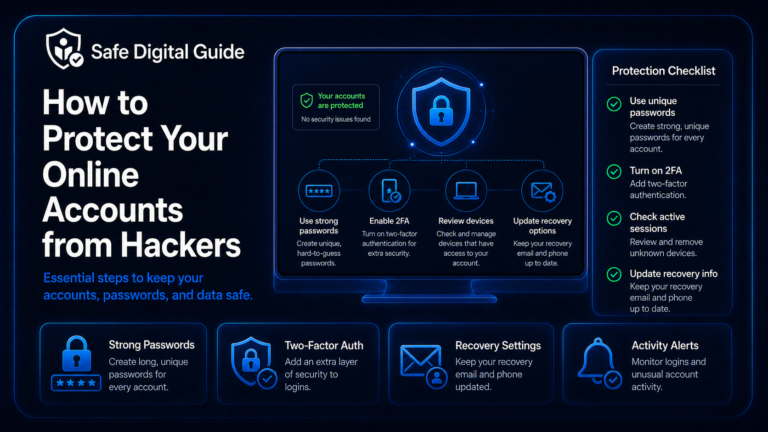
- Enable two-factor authentication.
- Keep your phone and computer secure.
- Avoid fake login pages.
- Review weak or reused passwords over time.
7. How to Choose a Password Manager
Beginners should choose a password manager that is easy to use, secure, and available on their main devices.
8. How to Start Using a Password Manager Safely
You do not need to move every password in one day. Start with your most important accounts and build the habit gradually.
Set up the manager
Create your account, choose a strong master password, and save recovery options safely.
Enable two-factor authentication
Protect your password manager account with 2FA if available.
Secure your email first
Update your email password because email controls many password resets.
Replace reused passwords
Start changing reused passwords on banking, shopping, social media, cloud, and work accounts.
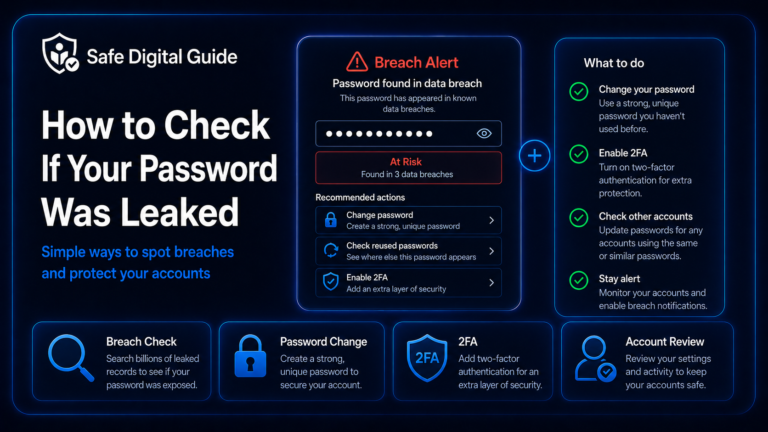
If you are doing this after a security alert, use Someone Logged Into My Account: What to Do Now.
9. Password Manager Mistakes to Avoid
A password manager is helpful, but only if you use it carefully.
Avoid this
- Using a weak master password.
- Reusing your master password elsewhere.
- Not enabling two-factor authentication.
- Saving recovery codes in unsafe places.
- Autofilling on websites you have not checked.
- Ignoring weak or reused password warnings.
Do this instead
- Use a long unique master password.
- Turn on two-factor authentication.
- Save backup codes privately.
- Check the website URL before logging in.
- Update weak passwords gradually.
- Keep your devices secure and updated.
If you are unsure whether a website is real before autofilling, read How to Tell If a Website Is Fake.
10. What If Your Password Manager Is Hacked?
If you believe your password manager account was accessed by someone else, treat it as an urgent security issue.
Change your master password
Use a new long password that you have never used anywhere else.
Sign out unknown sessions
Remove unfamiliar devices, browsers, or active sessions.
Enable or reset 2FA
Turn on two-factor authentication or update your 2FA settings.
Rotate important passwords
Change passwords for email, banking, cloud, work, and other sensitive accounts.
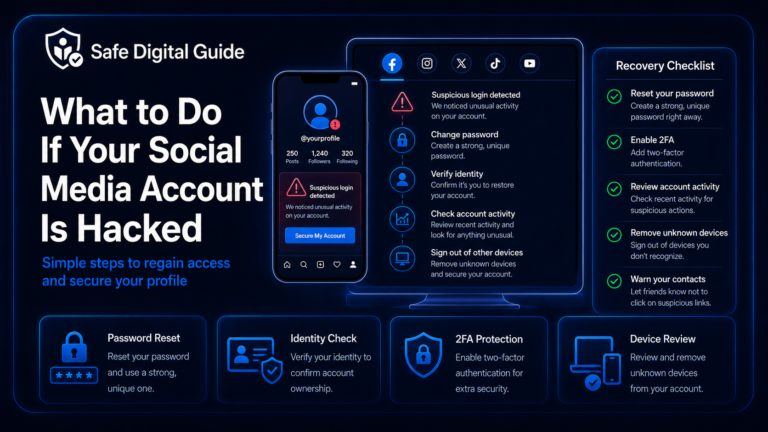
Also check your email, because email access can be used to reset many accounts. Read What to Do If Your Email Is Hacked.
Browser Passwords vs Password Manager
Many browsers can save passwords. This can be convenient, but a dedicated password manager may offer stronger organization, cross-device controls, sharing options, security reports, and advanced protection features.
Browser password saving
- Convenient for basic use.
- Often built into your browser.
- Works well if your browser account is secure.
- May be enough for some beginners.
Dedicated password manager
- Designed specifically for password security.
- Can work across browsers and devices.
- Often includes stronger vault tools.
- May include password health reports and secure notes.
Whichever option you choose, protect it with a strong password, 2FA, and safe device habits.
Related Guides
These guides can help you improve account security:
Helpful Official Resources
For more guidance, review password manager advice from NCSC, password guidance from CISA, and account security advice from Google Account Help.
Frequently Asked Questions
What is a password manager?
A password manager is an app that stores your passwords in a secure vault. It can generate, save, organize, and autofill strong unique passwords for your accounts.
Are password managers safe?
Password managers can be safe when you choose a trusted provider, use a strong master password, enable two-factor authentication, and keep your devices secure.
Do I still need to remember passwords?
You mainly need to remember your master password. The password manager can store the rest of your passwords for different accounts.
What should my master password be?
Your master password should be long, unique, memorable, and never used anywhere else. A strong passphrase can work well.
Should beginners use a password manager?
Yes, especially if they reuse passwords, forget passwords often, or want stronger account security without memorizing many complex passwords.
Can a password manager protect me from phishing?
It can help, but it cannot protect you from everything. Always check website URLs before logging in, and never enter your master password on suspicious pages.
This password manager guide is a starting point. The main goal is to stop password reuse and make strong unique passwords easier to use.
Final Safety Note
A password manager can make account security easier by helping you create, store, and use strong unique passwords.
The safest habit is simple: protect your password manager with a strong master password, enable two-factor authentication, and use unique passwords for every important account.